A plain-English map of the command line for vibe coders: what to type when the app is down, which commands only look, and the two you should read twice before pressing Enter.
I explain this for people who build with AI tools and have never opened a terminal. The command line looks like a wall of hieroglyphics until you notice it is only 15 or so words doing most of the work. This page is that short list. Start with the symptom you have, find the command, and learn what it does before you run it. If the words "server" or "hosting" are new, read what a server is first.
Before you run anything an AI pasted: read it first
Short answer: A command-line command does exactly what it says, with no "are you sure?" in most cases. An AI tool can paste a line that looks routine and deletes data or opens your server wide. Read the whole line, ask what each part does, and run read-only commands first.
AI tools are good at commands. They are also confident when they are wrong. Nothing on the command line checks the intent behind your keystrokes. The GNU manual for rm says that, with the -f option, it will "never prompt" you. So the safety check has to be you, before Enter.
Use this routine every time:
Read the whole line, left to right. Know what the program is, what it is pointed at, and what each flag does.
Ask the AI to explain it. Try: "Explain this command piece by piece and tell me what it changes. Is it read-only?"
Be wary of three patterns. Anything starting with sudo. Anything containing rm -r or rm -rf. Anything that pipes a download straight into a shell, which runs code you have not seen.
Check the path. A stray space or a / in the wrong place changes what gets touched. If the path is not the folder you expect, stop.
Prefer a copy. On a server that matters, take a backup or snapshot before changes.
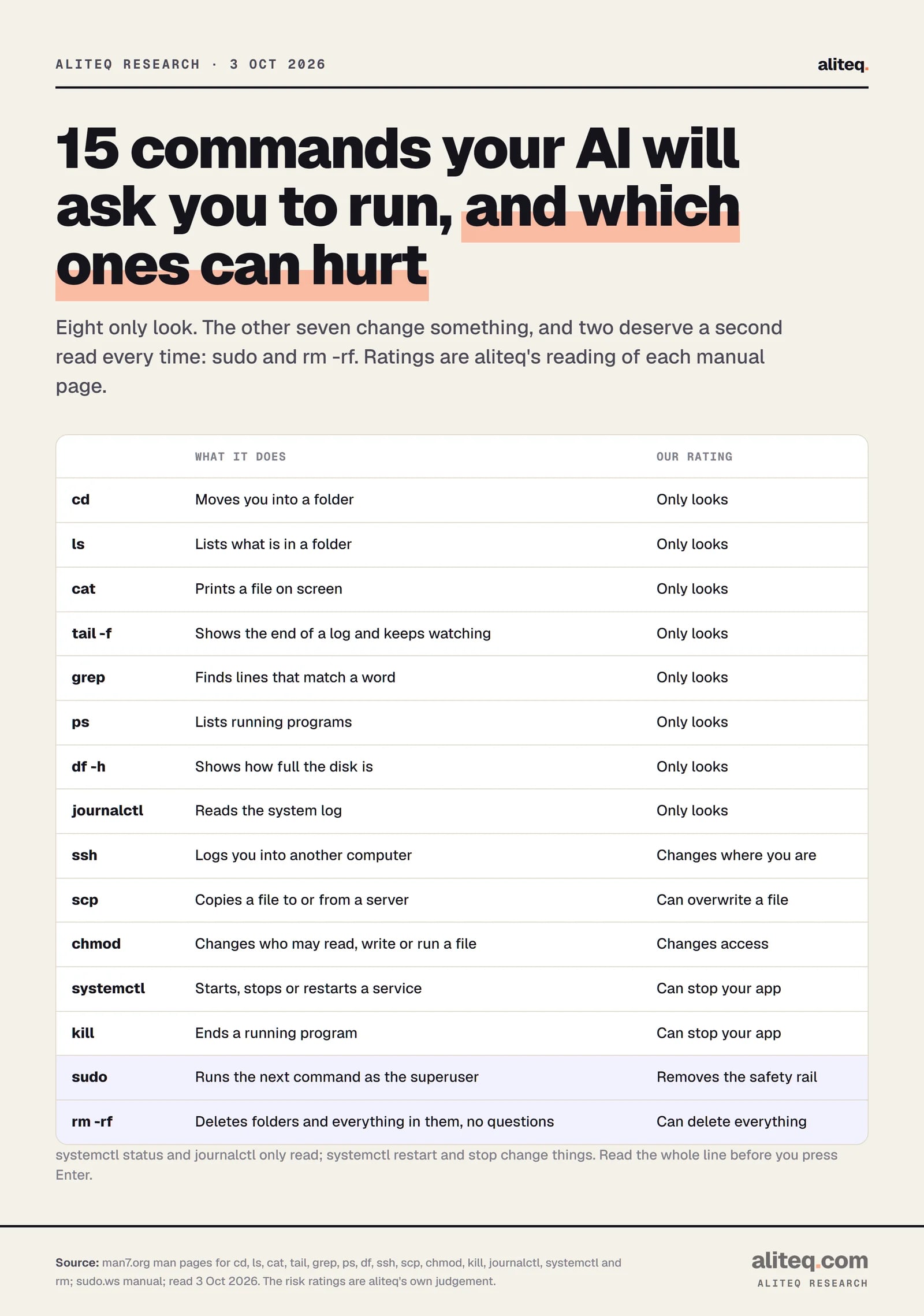
The 15 commands and our rating of each, from their manual pages. · aliteq research
"Where am I, and what is in here?" cd, ls and cat
Short answer:cd moves you into a folder, ls lists what is inside it, and cat prints a file on screen. All three only look. Together they are how you find the project folder, spot the config or log file, and read it.
A terminal always sits "in" one folder. cd changes which one. With no folder after it, cd takes you to your home folder (the POSIX manual says it goes to the directory named in the HOME variable).
cd my-app
ls -la
cat package.json
ls lists the current folder by default. Add -l for a long listing with sizes and permissions, -a to include hidden entries that start with a dot (like .env), and -h to print sizes as 1K, 234M or 2G.
cat prints a file to the screen. Its manual calls it "concatenate files and print on the standard output." Careful with secrets: if you run cat .env and then paste the output into a chat, you have just shared your keys. Paste only what is needed. There is more on this in API keys in the browser.
"What did the app say before it died?" tail, grep and journalctl
Short answer: Logs are the app's diary. tail -f shows the end of a log file and keeps printing new lines. grep filters for a word. On most modern Linux servers, journalctl -u your-app reads the log for one service. All of them only read.
Start with tail. By default it prints the last 10 lines of a file, and -n 50 changes that to 50. Add -f ("follow") and it "output appended data as the file grows", so you can watch the app write lines in real time. Press Ctrl-C to stop. One detail from the manual: if the log file gets rotated (renamed and replaced), plain -f keeps following the old file. Use --follow=name (or -F) in that case.
tail -n 50 app.log
tail -f app.log
grep prints only the lines that match a pattern. Use -i to ignore capital letters, -n to show line numbers and -C 3 to show three lines of context around each match. The manual advises quoting the pattern.
grep -i -n -C 3 "error" app.log
If your app runs as a service managed by systemd, which is common on Linux servers, the logs often live in the journal rather than a file. journalctl reads it. The -u flag picks one service, -n 100 shows the 100 most recent entries, and -f follows new ones. You can also filter by time with --since and by severity with -p.
One catch. The manual says that by default only root and members of a few groups ("systemd-journal", "adm" and "wheel") can read all journal files. If you see no entries or a permission message, that may be why. The sudo section below covers the fix.
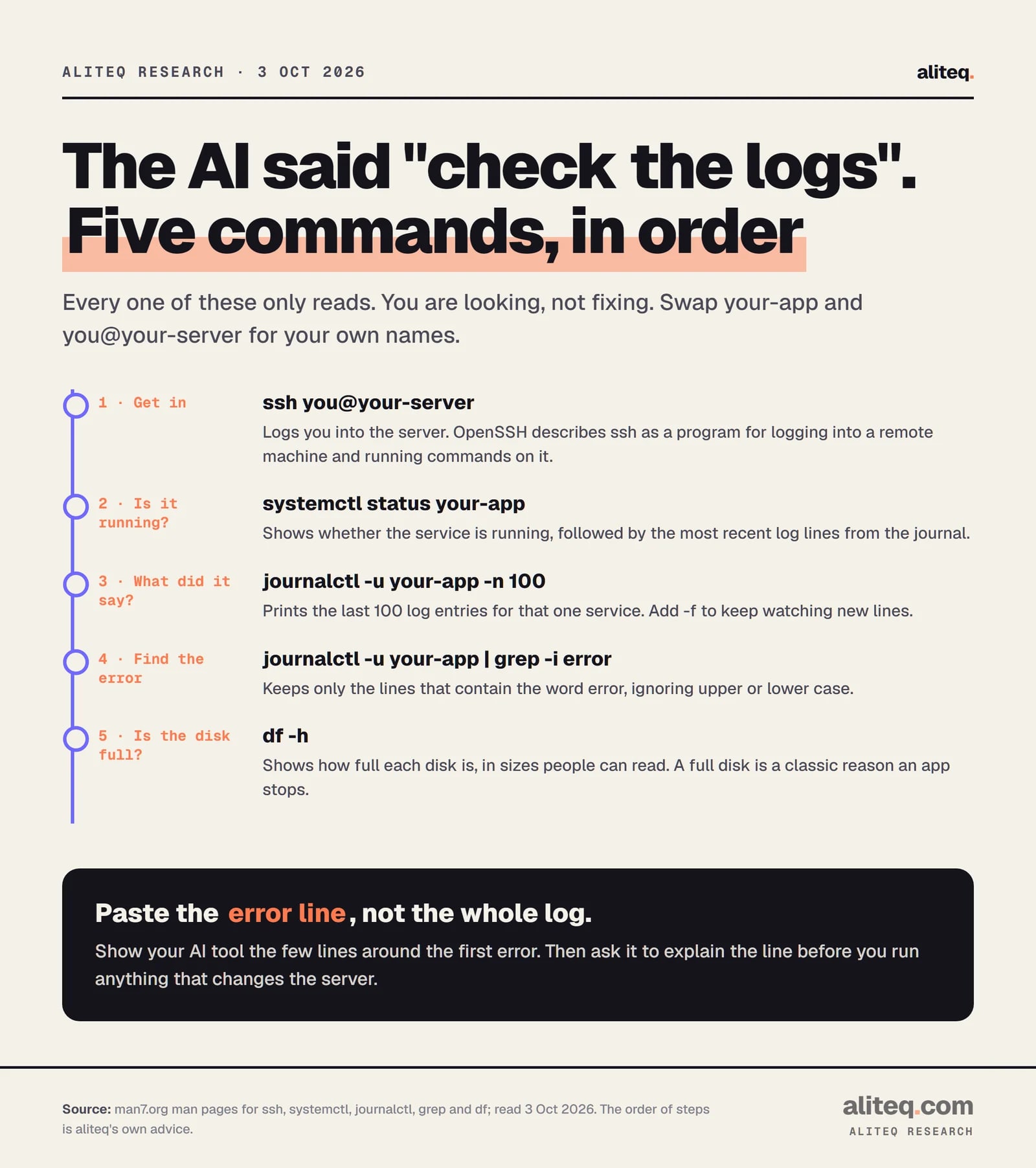
When the AI says "check the logs": five read-only commands, in order. · aliteq research
"Is my app even running?" systemctl, ps and kill
Short answer:systemctl status your-app tells you whether a service is running and shows its latest log lines. ps lists running programs. kill ends one. Status and ps only look. systemctl restart and kill change things, so use them on purpose.
On a systemd server, systemctl status shows "runtime status information" for a service "followed by most recent log data from the journal". That is two answers in one command. If it says the service has failed, the log lines under it usually say why.
systemctl status your-app
When the status is fine but something still feels wrong, ps takes a snapshot of running programs. The manual's own examples for all processes are ps -ef and ps axu. Pipe the result into grep to find yours:
ps aux | grep node
Two ways to restart, from gentle to forceful:
sudo systemctl restart your-app stops and starts the service. The manual says that if it is not running yet, it will be started. This is the usual first fix and the first thing an AI will suggest.
kill 1234 (where 1234 is the process ID from ps) sends a polite stop signal. The manual says that if you name no signal, the TERM signal is sent, and that it "should be used in preference to the KILL signal (number 9)", because a process may use TERM to clean up before it exits. The KILL signal "cannot be caught", so the program gets no chance to tidy up. Try plain kill first.
Both interrupt anyone using the app right now. Do them at a quiet moment, and check the status afterward.
"Get me into the server" and "move this file there": ssh and scp
Short answer:ssh logs you into another computer so you can run commands on it, and scp copies files over the same secure connection. The address looks like user@host. Both use encrypted connections, but both can also overwrite things, so read the destination.
The OpenSSH manual describes ssh as "a program for logging into a remote machine and for executing commands on a remote machine," built for "secure encrypted communications between two untrusted hosts over an insecure network." You give it user@hostname. If you add a command, it runs on the server instead of opening a full session.
The first line is a plain login. The second uses a specific key file with -i, which most cloud servers need. The third runs one command and comes back. The addresses here are placeholders: swap in your own.
scp copies files with the same login. The remote side is written user@host:path. Use -r for a whole folder and capital -P (not lowercase) for a non-standard port.
Order matters: source first, destination second. Swap them and you can overwrite your local copy with an older server one. The scp manual notes that it "uses the same authentication and provides the same security as a login session". Treat your private key file like a password, and never paste it into a chat.
"Permission denied": chmod and sudo
Short answer: "Permission denied" means your user may not read, change or run that file. chmod changes who is allowed. sudo runs one command as the superuser, who is allowed everything. Try chmod on the one file first. Use sudo last, and only on commands you understand.
Every file has three sets of permissions: for its owner, for the owner's group, and for everyone else. Each set can include read (4), write (2) and execute (1), which the chmod manual says you add up into a digit. So 7 is 4+2+1 (all three), 6 is 4+2 (read and write) and 5 is 4+1 (read and run).
ls -l deploy.sh
chmod 755 deploy.sh
ls -l shows the current permissions. chmod 755 makes the file runnable and leaves only the owner able to edit it. A secret file such as a private key should be 600, readable and writable by you only. Be suspicious of chmod 777, which lets anyone on the machine change and run the file. AI tools sometimes reach for it to make an error go away. It makes the error go away by removing the lock.
What the chmod digits add up to, and the four values you will see most. · aliteq research
sudo is different. The sudo manual says it "allows a permitted user to execute a command as the superuser or another user," and that root is the default target. The manual's own example is the log case from above: sudo -g adm more /var/log/syslog to view system logs only accessible to root and the adm group.
sudo journalctl -u your-app -n 100
Putting sudo in front of a read-only command is low risk. Putting it in front of anything that writes, deletes or installs is where the risk begins, because nothing is stopping you. If a command fails without sudo and the AI says "just add sudo", ask why first.
"No space left": df and rm, and the danger of rm -rf
Short answer:df -h shows how full the disk is. If it is full, something has to go, and rm removes it. Plain rm file removes one file. rm -rf folder removes a folder and everything inside it, never asking. It is the single most dangerous line in this guide.
A full disk stops apps, databases and log files in their tracks, so df is worth running whenever something odd happens. The -h flag prints sizes people can read. With no folder named, it shows all mounted file systems.
df -h
Now rm. Per the GNU manual, it "does not remove directories" by default. The -r flag removes directories "and their contents recursively," and -f means "ignore nonexistent files and arguments, never prompt." Combine them and you have a command that wipes a whole folder tree in one go, silently. The manual's warning for deletion is mild: it is "usually possible" to recover a deleted file's contents, which is not the same as a promise. Do not count on it.
The GNU manual even describes a real way this goes wrong. If a folder you think is a throwaway copy has your home directory still mounted inside it, then rm -rf of that folder "will remove everything under /home, too."
How to delete without gambling:
Look first. Run ls on the exact path you plan to remove. If the list surprises you, stop.
Use -I instead of -f.rm -rI folder asks once before a recursive delete. Add -v to see each file as it goes.
Delete the smallest thing. Remove one named log file, not the folder that holds it.
Never run a recursive delete that an AI wrote without understanding the path. Ask: "What exactly will this delete, and can I list it first?"
Have a backup. If the data matters, the answer to "is it recoverable?" should not be "maybe."
A one-page routine for the next time the AI says "check the logs"
Here is the order that keeps you out of trouble: look, read, then change.
ssh you@your-server. Use your key file with -i if the host gave you one.
systemctl status your-app shows the state and the latest log lines.
journalctl -u your-app -n 100, then add | grep -i error to find the failing line.
df -h. A full disk explains many strange failures.
Ask the AI what the fix command changes. Restart the service before you reach for sudo or rm.
What does "SSH in and check the logs" actually mean?
It means log into your server with the ssh command, then read the files or journal where your app writes its messages. The usual commands are ssh to get in, then journalctl or tail to read the logs. Reading logs does not change anything on the server.
Is it safe to run a command my AI wrote?
Not automatically. Commands run without an "are you sure?" in most cases. Read the whole line, ask the AI to explain each part, and start with read-only commands. Be extra careful with sudo, rm -r and anything that pipes a download straight into a shell.
What is the difference between rm and rm -rf?
Plain rm removes files and, per the GNU manual, does not remove directories by default. Adding -r removes folders and everything inside them, and -f means never prompt and ignore missing files. Together they delete a whole folder tree silently, so check the path first.
When do I need sudo?
When a command needs more power than your user has, such as reading system logs or restarting a service. The sudo manual says it runs a command as the superuser or another user. Try without it first, and use it only for commands you understand.
How do I watch a log live?
Use tail -f followed by the log file name, or journalctl -u your-app -f for a systemd service. Both keep printing new lines as they arrive. Press Ctrl-C to stop. If the log file is rotated, use tail with --follow=name.
What does chmod 755 mean?
The digits are owner, group and everyone else, and each is a sum of read (4), write (2) and execute (1). So 7 is all three and 5 is read plus execute. In 755 the owner can edit and run the file, and everyone else can only read and run it.