The server software is free and Pocketpair's own guide covers four ways to run it. Every step from that guide in plain words, with the port, the settings file, how Xbox and PS5 friends get in, backups and the errors people actually hit. Checked against version 1.0.4 of the guide on Nov 18, 2026.
You can host a Palworld dedicated server yourself for free. Pocketpair gives the server software away on Steam (app ID 2394010, anonymous login, no extra copy of the game needed for the SteamCMD route), and it runs on a 64-bit Windows or Linux machine with 4 or more CPU cores, 16 GB of RAM (32 GB recommended), an SSD and UDP port 8211 forwarded on your router. Xbox and PS5 can't host a dedicated server, but they can join yours once you start it as a community server with -publiclobby. Every step below comes from Pocketpair's official Palworld Server Guide (version 1.0.4, read November 18, 2026) and Valve's SteamCMD docs.
What your server PC needs
These are Pocketpair's operating requirements for the server, word for word where it matters. The server doesn't need a graphics card listed; it's the RAM and the disk that decide how well it runs.
Palworld dedicated server requirements (Pocketpair Server Guide 1.0.4, read Nov 18, 2026)
CPU
Requirement
4 cores or more (recommended)
Memory
Requirement
16 GB. "Recommended for larger than 32GB." 8 GB boots, but Pocketpair says it "increases the possibility of server crashes due to out of memory"
Network
Requirement
UDP port 8211 by default (changeable); you must be able to port forward on your router
Storage
Requirement
A fast SSD is recommended. "Low-performance storage may corrupt saved data"
Operating system
Requirement
Windows 64-bit, or Linux 64-bit (Ubuntu, AlmaLinux and others)
Requirement
CPU
4 cores or more (recommended)
Memory
16 GB. "Recommended for larger than 32GB." 8 GB boots, but Pocketpair says it "increases the possibility of server crashes due to out of memory"
Network
UDP port 8211 by default (changeable); you must be able to port forward on your router
Storage
A fast SSD is recommended. "Low-performance storage may corrupt saved data"
Operating system
Windows 64-bit, or Linux 64-bit (Ubuntu, AlmaLinux and others)
Running the server on the same PC you play on works, but both want memory: Steam lists 16 GB of RAM as the game's minimum, and the server wants 16 GB on its own, so 32 GB is the sensible floor for one machine doing both. Our guide to how much RAM you need for gaming covers what 16 GB vs 32 GB means for the game side.
Pick one of the four ways to install it
Pocketpair lists four deployment methods. If you've never run a game server, it recommends the first one.
Four official ways to run the server (Pocketpair Server Guide)
Windows + Steam client
Who it suits
Easiest. Pocketpair recommends it if you've never set up a game server
Catch
Windows firewall and router settings still needed
Windows + SteamCMD
Who it suits
Command-line install and management on Windows
Catch
Windows firewall and router settings still needed
Linux + SteamCMD
Who it suits
Needs some Linux knowledge
Catch
Router settings needed; sometimes Linux security settings too
Official Docker image
Who it suits
For advanced users; comes with a sample Compose file
Catch
Docker Desktop on Windows or macOS isn't recommended (slow disk access risks corrupt saves)
Who it suits
Catch
Windows + Steam client
Easiest. Pocketpair recommends it if you've never set up a game server
Windows firewall and router settings still needed
Windows + SteamCMD
Command-line install and management on Windows
Windows firewall and router settings still needed
Linux + SteamCMD
Needs some Linux knowledge
Router settings needed; sometimes Linux security settings too
Official Docker image
For advanced users; comes with a sample Compose file
Docker Desktop on Windows or macOS isn't recommended (slow disk access risks corrupt saves)
Option 1, Windows with the Steam client
Open your Steam library and look for Palworld Dedicated Server. If you don't see it, make sure Tools is ticked in the filter at the top left.
Install it, then press Play.
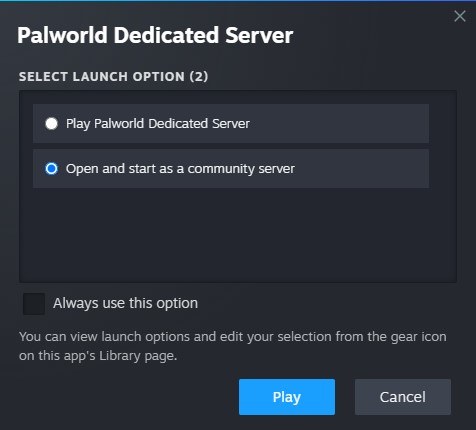
Steam asks which launch option to use. Pick Play Palworld Dedicated Server for a private server, or Open and start as a community server if friends on Xbox or PS5 need to find it (more on that below).
A console window opens. Pocketpair says that window means the server started successfully. Leave it running.
The launch choice Steam shows when you press Play. The second option lists your server for Xbox and PS5 players. Official screenshot from Pocketpair's Palworld Server Guide, read Nov 18, 2026. · Pocketpair / Palworld Server Guide
Option 2, Windows with SteamCMD
SteamCMD is Valve's command-line Steam client. Get it from Valve's SteamCMD page (on Windows it's a small zip, steamcmd.zip, from Valve's own download server), unpack it into its own folder, and run this from a command prompt in that folder. It's the exact command from Pocketpair's guide:
When the download finishes, go to the server folder and start it:
cd .\steamapps\common\PalServer
PalServer.exe
If you set a different install directory for SteamCMD, the PalServer folder is under that instead.
Option 3, Linux with SteamCMD
Install SteamCMD the way Valve's SteamCMD page describes for your distribution. Valve also hosts a Linux archive, steamcmd_linux.tar.gz, on the same download server as the Windows zip. Then download the server with the same command:
The server usually lands under your home directory:
cd ~/Steam/steamapps/common/PalServer
./PalServer.sh
Option 4, Pocketpair's official Docker image
Pocketpair publishes an official image (ghcr.io/pocketpairjp/palserver) with a sample Compose file on its GitHub. This is the sample as it stood on November 18, 2026; the image tag tracks the game version (the last update to it was on September 15, 2026, for v1.0.5):
Grab compose.yaml and helper.sh from the repo's compose folder (the Compose file mounts that helper script), then, from the same folder:
docker compose up -d     # start the server
docker compose logs      # check it started
docker compose down      # stop it
On first start, the save files and config files appear under ./Saved. Pocketpair's README calls the Compose file a sample: check that saves really land in ./Saved before you rely on it. If you're new to Compose files, Docker Compose explained walks through how one works.
Open the port so friends can connect
The server listens on UDP port 8211 unless you change it. Two things have to let that traffic in:
Your router. Forward UDP 8211 to the PC running the server. Every router's menu is different; look for "port forwarding" or "virtual server".
Your PC's firewall. On Windows, Pocketpair says separate Windows firewall settings are needed; allow the server through Windows Defender Firewall for that UDP port. On Linux, check your distribution's firewall.
To use another port, start the server with -port=8000 (any free port), and forward that one instead.
Join your server from the game
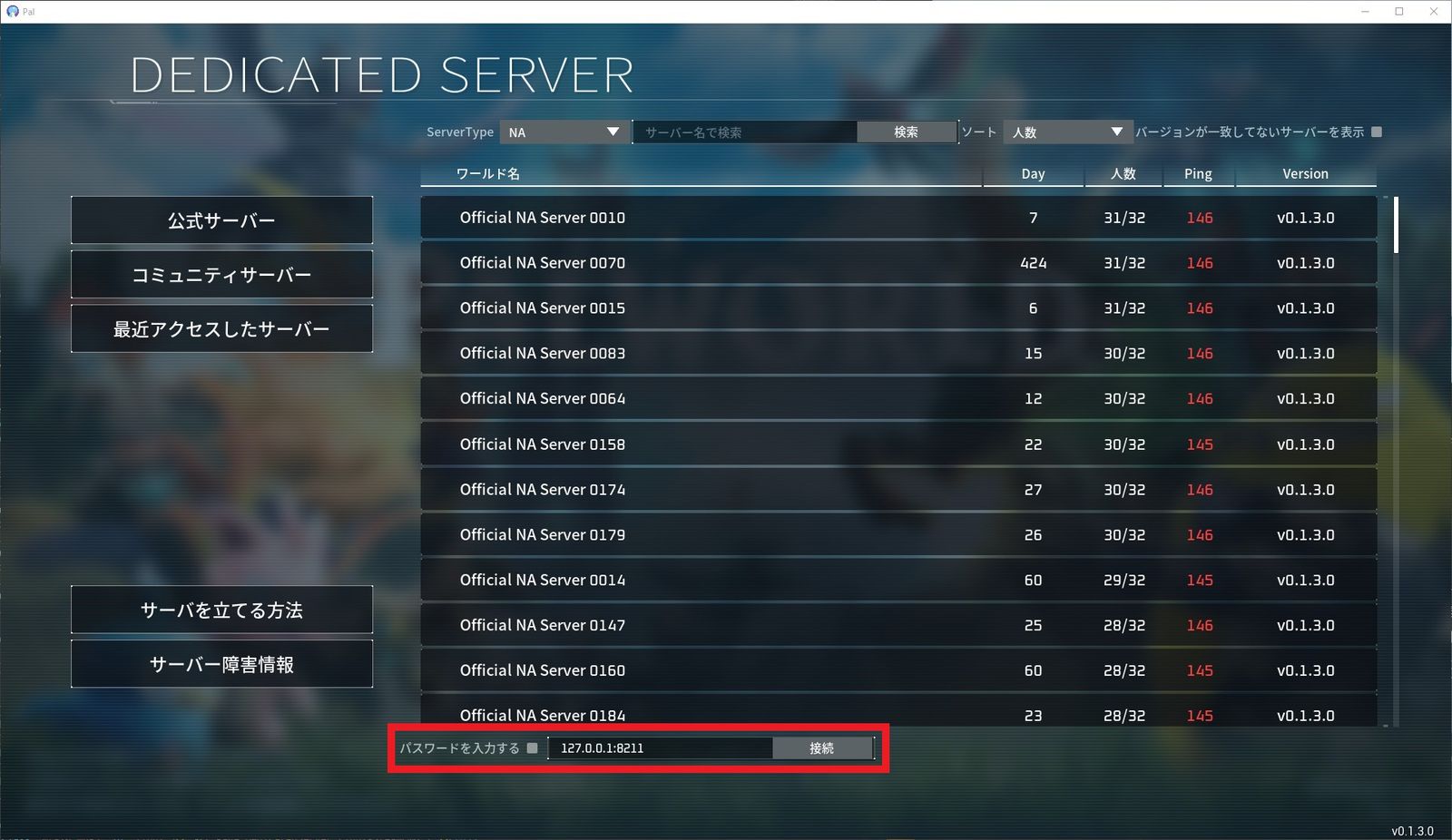
From a PC (Steam, Microsoft Store or Mac): open the multiplayer server list and type your server's IP address and port (for example 203.0.113.10:8211) into the box below the list, then connect. On the same PC as the server, 127.0.0.1:8211 works.
The box for an IP and port sits under the server list. Pocketpair's official screenshot is from an early Japanese-language build (v0.1.3), so your menu labels will look different. Read Nov 18, 2026. · Pocketpair / Palworld Server Guide
From a community server: pick Community server on the left of the server list, find yours by name and select it.
Let Xbox and PS5 friends join (community server)
This is the step most people miss. Pocketpair's guide says it plainly: "If you want to join the server from the Xbox version or the PS5 version, you need to deploy it as a community server." Console players can't type in an IP; they can only pick a server from the in-game list.
Steam client: choose Open and start as a community server when you press Play.
SteamCMD on Windows:PalServer.exe -publiclobby
Linux:./PalServer.sh -publiclobby
Crossplay is on by default: dedicated and community servers accept Steam, Xbox and Microsoft Store PC, Mac and PS5 players. The CrossplayPlatforms setting (default (Steam,Xbox,PS5,Mac)) lets you narrow that list. Set a ServerPassword if you don't want strangers from the public list walking in. Which platforms can host, and the PS Plus or Game Pass memberships console players need, are in is Palworld cross-platform.
Change the server settings (PalWorldSettings.ini)
The settings file only exists after the server has started once. Copy the default file into place, then edit the copy, never the default (Pocketpair: editing DefaultPalWorldSettings.ini "will not affect the changes").
All settings sit on one OptionSettings=( … ) line. This is the example from Pocketpair's Docker README, which sets a password and turns off item drops on death:
The settings most people change first, from Pocketpair's parameter list:
Useful PalWorldSettings.ini settings (Pocketpair Server Guide 1.0.4)
ServerName / ServerDescription
What it does
What players see in the server list
ServerPassword
What it does
Password needed to join
AdminPassword
What it does
Unlocks the admin commands below
ServerPlayerMaxNum
What it does
Most players allowed at once
CrossplayPlatforms
What it does
Which platforms may join. Default (Steam,Xbox,PS5,Mac)
bIsUseBackupSaveData
What it does
Turns on automatic world backups (more disk load)
ExpRate / PalCaptureRate
What it does
EXP gain and capture-rate multipliers
DeathPenalty
What it does
None, Item, ItemAndEquipment or All (also drops your team's Pals)
bIsPvP
What it does
Turns PvP on. Pocketpair calls PvP a trial feature that isn't covered by support
BaseCampWorkerMaxNum
What it does
Pals per base (max 50). Higher raises server load
What it does
ServerName / ServerDescription
What players see in the server list
ServerPassword
Password needed to join
AdminPassword
Unlocks the admin commands below
ServerPlayerMaxNum
Most players allowed at once
CrossplayPlatforms
Which platforms may join. Default (Steam,Xbox,PS5,Mac)
bIsUseBackupSaveData
Turns on automatic world backups (more disk load)
ExpRate / PalCaptureRate
EXP gain and capture-rate multipliers
DeathPenalty
None, Item, ItemAndEquipment or All (also drops your team's Pals)
bIsPvP
Turns PvP on. Pocketpair calls PvP a trial feature that isn't covered by support
BaseCampWorkerMaxNum
Pals per base (max 50). Higher raises server load
Restart the server after editing. Hosting companies' guides add one practical tip worth following: stop the server before you edit the file, so a running server doesn't write its old settings back over yours.
Launch options worth knowing
Palworld server launch arguments (Pocketpair Server Guide 1.0.4)
-port=8211
What it does
Change the listening port
-players=32
What it does
Change the maximum number of players
-publiclobby
What it does
Run as a community server (needed for Xbox and PS5 players)
-publicip / -publicport
What it does
Set the public address by hand if a community server isn't detected properly
Multithreading options. Pocketpair's 1.0.4 guide says "In v1.0 and later, leaving this parameter unset may improve performance"
-logformat=text
Log format, Text or Json
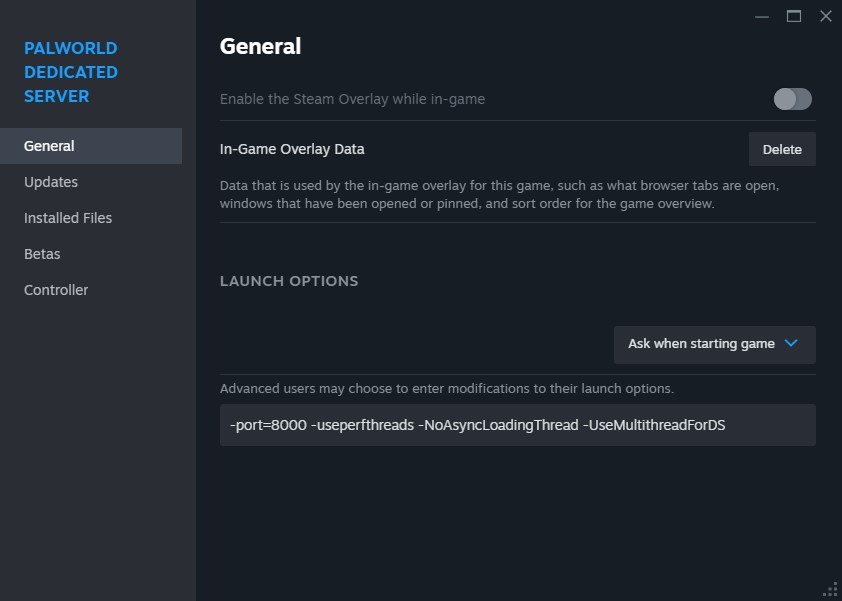
The Docker sample above still passes the three multithreading options, while the 1.0.4 guide says leaving them off may run better on 1.0. If your server stutters, try it without them. In the Steam client, launch options go in the dedicated server's Properties under Launch options.
Where launch options go if you run the server from the Steam client. Official screenshot from Pocketpair's Palworld Server Guide, read Nov 18, 2026. · Pocketpair / Palworld Server Guide
Admin commands
Set AdminPassword in the settings file, join your server, press Enter and type /AdminPassword yourpassword. Then these work in the chat box:
Palworld server admin commands (Pocketpair Server Guide 1.0.4)
/Save
What it does
Save the world now
/Shutdown [Seconds] [MessageText]
What it does
Shut down after a delay and tell players why
/ShowPlayers
What it does
List connected players
/KickPlayer, /BanPlayer, /UnBanPlayer <SteamID>
What it does
Remove, ban or unban a player
/Broadcast <MessageText>
What it does
Message everyone on the server
/DoExit
What it does
Force-stop the server
What it does
/Save
Save the world now
/Shutdown [Seconds] [MessageText]
Shut down after a delay and tell players why
/ShowPlayers
List connected players
/KickPlayer, /BanPlayer, /UnBanPlayer <SteamID>
Remove, ban or unban a player
/Broadcast <MessageText>
Message everyone on the server
/DoExit
Force-stop the server
Back up your world (and where the save is)
Everything that matters lives in the server's Pal/Saved folder: the world save and the config. With Docker that's the ./Saved folder next to your Compose file. Copy the whole folder somewhere else before every update; Pocketpair's Docker README says "Be sure to back up your data before updating."
Turn on bIsUseBackupSaveData and the server keeps its own rolling backups in a backup folder inside the save directory. Pocketpair lists the schedule as 5 saves every 30 seconds, 6 every 10 minutes, 12 every hour and 7 per day.
To update: type /Save, stop the server, back up Pal/Saved, then run the same app_update 2394010 validate command again (or change the image tag and run docker compose up -d for Docker). Pocketpair has kept shipping updates since 1.0 (v1.0.4 on September 7, 2026 and v1.0.5 on September 15), so expect to do this regularly. Since v1.0.4, a version mismatch error tells players which version the server is running, which is the clue that the server or a player is behind.
When it doesn't work
Common Palworld server problems and the fix from the official guide
Friends outside your home can't connect
Likely cause and fix
UDP 8211 (or your -port) isn't forwarded on the router, or the firewall blocks it
Xbox or PS5 friends can't find the server
Likely cause and fix
It isn't a community server. Start it with -publiclobby, and check CrossplayPlatforms
You can't join your own community server from home
Likely cause and fix
Your router lacks Hairpin NAT. Join by IP instead, or test from outside your network
Settings don't change
Likely cause and fix
You edited DefaultPalWorldSettings.ini. Edit Pal/Saved/Config/…/PalWorldSettings.ini instead
The server crashes as the world grows
Likely cause and fix
Not enough RAM. 8 GB boots but crashes more; Pocketpair wants 16 GB, 32 GB for larger servers
Corrupted or missing saves
Likely cause and fix
Slow storage or Docker Desktop. Use an SSD and run Docker on Linux; restore from Pal/Saved backups
Version mismatch when joining
Likely cause and fix
Update the server (re-run app_update 2394010) or the player's game
A server mod does nothing
Likely cause and fix
Server mods only work on the Windows server, and only mods whose Info.json has "IsServer": true
Likely cause and fix
Friends outside your home can't connect
UDP 8211 (or your -port) isn't forwarded on the router, or the firewall blocks it
Xbox or PS5 friends can't find the server
It isn't a community server. Start it with -publiclobby, and check CrossplayPlatforms
You can't join your own community server from home
Your router lacks Hairpin NAT. Join by IP instead, or test from outside your network
Settings don't change
You edited DefaultPalWorldSettings.ini. Edit Pal/Saved/Config/…/PalWorldSettings.ini instead
The server crashes as the world grows
Not enough RAM. 8 GB boots but crashes more; Pocketpair wants 16 GB, 32 GB for larger servers
Corrupted or missing saves
Slow storage or Docker Desktop. Use an SSD and run Docker on Linux; restore from Pal/Saved backups
Version mismatch when joining
Update the server (re-run app_update 2394010) or the player's game
A server mod does nothing
Server mods only work on the Windows server, and only mods whose Info.json has "IsServer": true
Mods are PC-only, so a server with mods that change gameplay won't suit console friends. Pocketpair's mod page says to place Workshop mods in the server's Mods/Workshop folder, list them in Mods/PalModSettings.ini and restart; -NoMods turns them all off. It also warns that mods "may cause save-data corruption or crashes", which is one more reason to back up first.
The software is. Pocketpair distributes Palworld Dedicated Server free on Steam (app ID 2394010), and SteamCMD downloads it with an anonymous login. You pay for the machine it runs on and its electricity, or for a rented server.
Do I need to own Palworld to host a server?
Not for the SteamCMD or Docker route: Pocketpair's command logs in anonymously, so no account or game purchase is involved in downloading the server. Everyone who joins still needs their own copy of the game.
How much RAM does a Palworld server need?
Pocketpair lists 16 GB and recommends 32 GB or more for larger servers. It says 8 GB boots but raises the chance of out-of-memory crashes.
What port does a Palworld server use?
UDP 8211 by default. You can change it with the -port launch option, and you have to forward that port on your router.
How do Xbox and PS5 players join a dedicated server?
Only through the community server list. Start the server with -publiclobby (or Steam's "Open and start as a community server") and they can find it by name. Console players can't join by typing an IP.
Can I host a Palworld server on PS5, Xbox or a Mac?
No. Pocketpair's server runs on 64-bit Windows or Linux only. Consoles and Macs can join a server; they can't run one.
Where are the Palworld server save files?
In the server's Pal/Saved folder (the ./Saved folder with the official Docker image). Copy the whole folder to back up the world, and turn on bIsUseBackupSaveData for automatic backups.
How many players can join a Palworld dedicated server?
Up to 32, per Palworld's Steam page. Set the limit with ServerPlayerMaxNum in the settings file or the -players launch option. Normal online co-op without a server holds 4.
Can I run the server and play on the same PC?
Yes, but it needs memory for both: Steam lists 16 GB for the game and Pocketpair wants 16 GB for the server, so plan on 32 GB.
How do I make my Palworld server PvP or PvE?
Servers are PvE unless you set bIsPvP=True (plus bEnablePlayerToPlayerDamage and bEnableDefenseOtherGuildPlayer, per Pocketpair's PvP page). Pocketpair calls PvP a trial feature that isn't covered by support.