It started as a toggle and became a layer slider in LM Studio 0.4.0. Where it lives, what it moves, the number to set on an 8, 12 or 16GB card, whether LM Studio runs Qwen3.8 Flash Next, and why Mac MLX models don't have the setting.
This post contains affiliate links. If you buy through them, Aliteq may earn a commission — at no extra cost to you. Prices change; check the seller’s own page for today’s price.
Share
The Amiga had two kinds of memory. Chip RAM was shared with the custom graphics chips. Fast RAM was for the CPU alone. Every Amiga owner learned the same trick: keep what the graphics chips touch in chip RAM, and park the bulky rest in fast RAM. A mixture-of-experts model on a small graphics card wants exactly that treatment.
LM Studio has a setting that does it. It has had two names, and it changed shape in January 2026, which is why the advice you find about it rarely matches the app in front of you. This guide is built from LM Studio's release notes, changelog, docs and open-source settings code, read on 4 October and again on November 1, 2026. Nothing was installed or timed for it, so there are no speed numbers here except LM Studio's own words.
Where is the MoE offload setting in LM Studio?
It's in the model's load settings, under the advanced options. Look for "Number of layers for which to force MoE weights onto CPU". Older guides call it "Force Model Expert Weights onto CPU", which was the same setting's name until December 2025. You can set it when you load a model, or save it as that model's default.
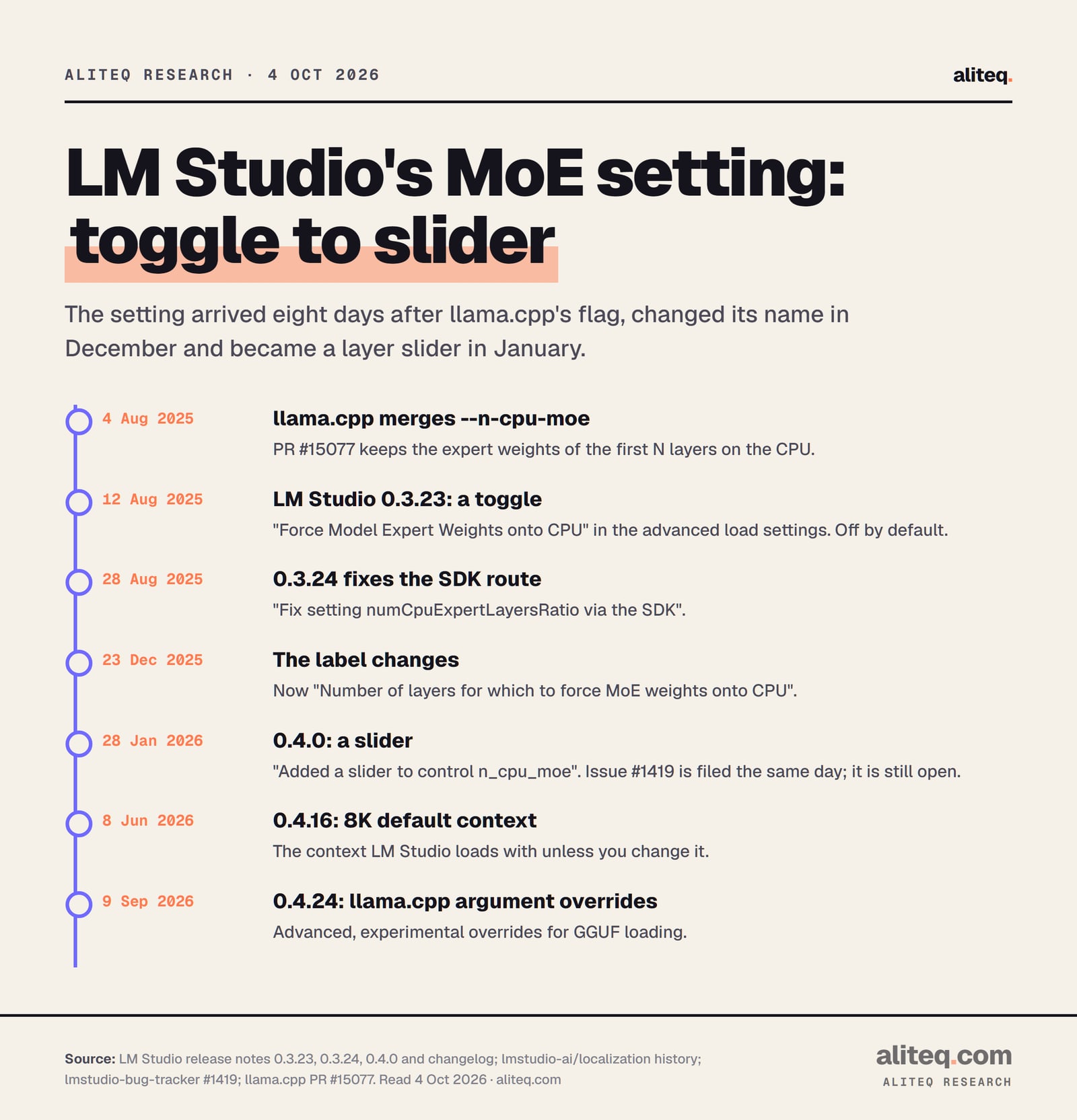
LM Studio added it in version 0.3.23 on August 12, 2025. The release notes told low-VRAM users to "try to turn on the "Force Model Expert Weights onto CPU" option in the advanced load settings." That version was a simple on/off switch.
The name changed in LM Studio's localization file on December 23, 2025, in a commit titled "Improve title". Then version 0.4.0 shipped on January 28, 2026 with this line in its notes: "Added a slider to control n_cpu_moe". So if you're on any 0.4 release, look for a slider with a layer count, not a toggle.
Two places expose it:
The model loader. Open it with Cmd + L on a Mac or Ctrl + L on Windows and Linux, pick the model, and open its advanced load settings.
My Models. LM Studio's docs say to "click on the gear ⚙️ icon to edit the model's default parameters". Settings saved there apply "when the model is loaded anywhere in the app (including through lms load)".
What does it actually do?
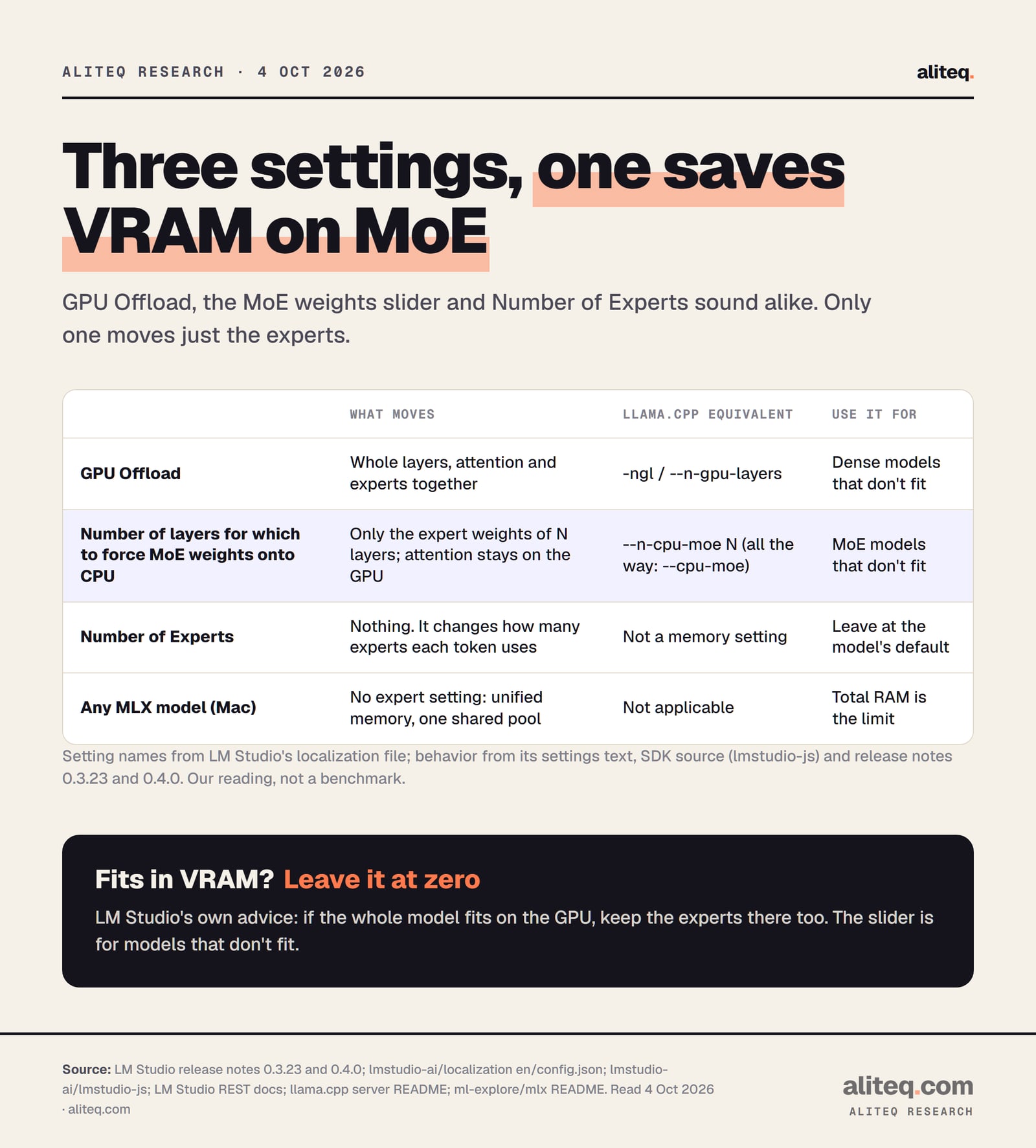
It keeps the expert weights of N layers in system RAM and leaves the rest of each layer on the GPU. LM Studio's own description says it "Leaves attention layers on GPU, saving VRAM while keeping inference fairly fast." That is llama.cpp's --n-cpu-moe, wrapped in a slider.
The 0.3.23 release notes said it plainly: "This is utilizing the same underlying technology as llama.cpp's --n-cpu-moe." In llama.cpp, that flag keeps "the Mixture of Experts (MoE) weights of the first N layers in the CPU". Its sibling, --cpu-moe, keeps all of them there. The LM Studio slider covers both: a middle value is --n-cpu-moe, and the far right is all experts.
Why does this work at all? A mixture-of-experts model has many expert blocks per layer, but each token only uses a few of them. The always-used parts, attention and the router, are small. The experts are huge and mostly idle. So the experts can sit in slower system RAM while the busy parts stay on the fast card. Our explainer on what --n-cpu-moe actually does covers the mechanics and the published llama.cpp benchmarks.
LM Studio's SDK shows how it meets the GPU Offload slider. The SDK field, numCpuExpertLayersRatio, runs from 0 to 1. Its code comment says 1 puts all expert layers in CPU memory "regardless of GPU offload configuration", and 0 means "the expert offload will be determined by GPU offload".
Three LM Studio load settings that sound alike (read Oct 4, 2026)
GPU Offload
What it moves or changes
Whole layers between GPU and CPU (attention and experts together)
Use it for
Dense models that don't fit
Number of layers for which to force MoE weights onto CPU
What it moves or changes
Only the expert weights of N layers go to system RAM; attention stays on the GPU
Use it for
MoE models that don't fit
Number of Experts
What it moves or changes
How many experts the model uses per token. Nothing moves
Use it for
Leave it at the model's default
What it moves or changes
Use it for
GPU Offload
Whole layers between GPU and CPU (attention and experts together)
Dense models that don't fit
Number of layers for which to force MoE weights onto CPU
Only the expert weights of N layers go to system RAM; attention stays on the GPU
MoE models that don't fit
Number of Experts
How many experts the model uses per token. Nothing moves
Leave it at the model's default
From LM Studio's settings text, SDK source and release notes, read Oct 4, 2026. · aliteq research
When should you turn it on?
Only when the MoE model doesn't fit in your graphics card's memory. LM Studio's 0.3.23 notes say that if the entire model fits, "you're better off sticking with placing expert weights onto the GPU as well". On a dense model the setting has nothing to move.
The current settings text agrees, in fewer words. It says the slider "can be faster than partial GPU offload" and is "Not recommended if the model fits entirely in VRAM." Both halves matter. When something has to leave the card, moving experts can beat moving whole layers. When nothing has to leave, leave it all on the card.
So the order of moves is:
If the model fits, leave the slider at zero.
If it doesn't fit and it's an MoE model, use the expert slider before you lower GPU Offload.
If it still doesn't fit with every expert in RAM, shrink the context or pick a smaller file.
What number should you set, and how much RAM do you need?
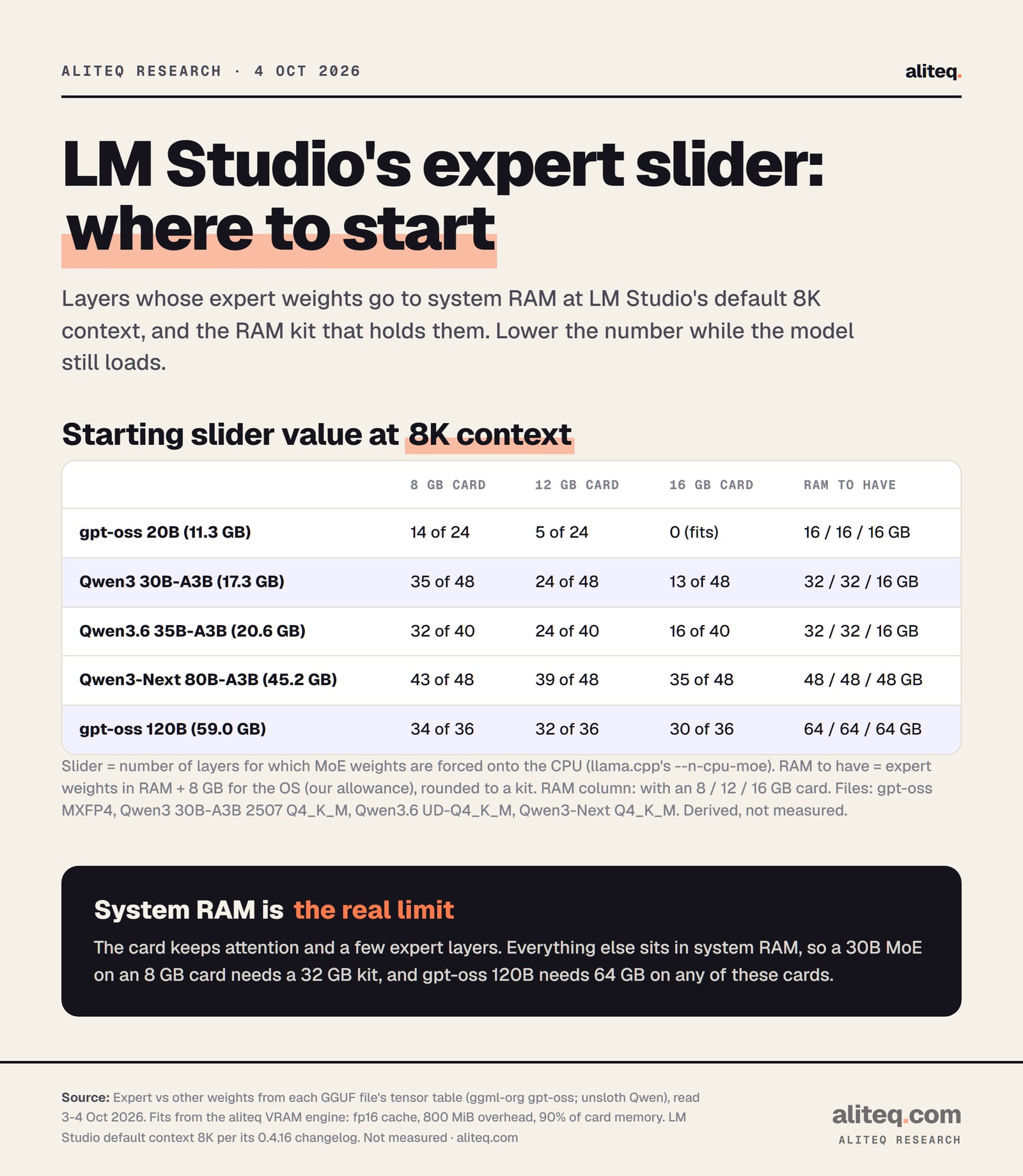
Start with the slider value from the table below for your card. It's the number of layers whose experts go to system RAM at LM Studio's default 8K context. The RAM column matters more: if the experts don't fit in system RAM, no setting saves you.
LM Studio's default context is 8K tokens, per its 0.4.16 changelog ("Updated default context length to 8k tokens"). These values use the same method and GGUF files as our table of the best MoE models for 12GB and 16GB cards, which uses 32K context. The 8GB column is only on this page.
Starting slider value at 8K context (layers with experts in RAM), and RAM to have
gpt-oss 20B (MXFP4)
File
11.3 GB
8GB card
14 of 24
12GB card
5 of 24
16GB card
0 (fits)
RAM to have (8 / 12 / 16GB card)
16 / 16 / 16 GB
Qwen3 30B-A3B 2507 (Q4_K_M)
File
17.3 GB
8GB card
35 of 48
12GB card
24 of 48
16GB card
13 of 48
RAM to have (8 / 12 / 16GB card)
32 / 32 / 16 GB
Qwen3.6 35B-A3B (UD-Q4_K_M)
File
20.6 GB
8GB card
32 of 40
12GB card
24 of 40
16GB card
16 of 40
RAM to have (8 / 12 / 16GB card)
32 / 32 / 16 GB
Qwen3-Next 80B-A3B (Q4_K_M)
File
45.2 GB
8GB card
43 of 48
12GB card
39 of 48
16GB card
35 of 48
RAM to have (8 / 12 / 16GB card)
48 / 48 / 48 GB
gpt-oss 120B (MXFP4)
File
59.0 GB
8GB card
34 of 36
12GB card
32 of 36
16GB card
30 of 36
RAM to have (8 / 12 / 16GB card)
64 / 64 / 64 GB
Qwen3.8 Flash Next (ISTA-DASLab IQ2_XS)
File
39.2 GB + 28.8 GB n-gram table
8GB card
45 of 48
12GB card
40 of 48
16GB card
35 of 48
RAM to have (8 / 12 / 16GB card)
48 / 48 / 48 GB
File
8GB card
12GB card
16GB card
RAM to have (8 / 12 / 16GB card)
gpt-oss 20B (MXFP4)
11.3 GB
14 of 24
5 of 24
0 (fits)
16 / 16 / 16 GB
Qwen3 30B-A3B 2507 (Q4_K_M)
17.3 GB
35 of 48
24 of 48
13 of 48
32 / 32 / 16 GB
Qwen3.6 35B-A3B (UD-Q4_K_M)
20.6 GB
32 of 40
24 of 40
16 of 40
32 / 32 / 16 GB
Qwen3-Next 80B-A3B (Q4_K_M)
45.2 GB
43 of 48
39 of 48
35 of 48
48 / 48 / 48 GB
gpt-oss 120B (MXFP4)
59.0 GB
34 of 36
32 of 36
30 of 36
64 / 64 / 64 GB
Qwen3.8 Flash Next (ISTA-DASLab IQ2_XS)
39.2 GB + 28.8 GB n-gram table
45 of 48
40 of 48
35 of 48
48 / 48 / 48 GB
"RAM to have" is the expert weight in RAM plus 8 GB for your operating system and apps, rounded up to a common kit size. The 8 GB is our allowance, not an LM Studio number. The Flash Next row assumes its 28.8 GB n-gram table is read from disk rather than held in RAM; see the Flash Next section below. Here's one row worked through, so you can redo it for your own card:
At 32K context the numbers climb a little: Qwen3 30B-A3B needs 41 of 48 layers' experts in RAM on an 8GB card, 31 on 12GB and 20 on 16GB. The full 32K table, with GLM-4.5-Air and Qwen3 235B, is in the 12GB and 16GB MoE guide.
Derived from the GGUF tensor tables and the aliteq VRAM engine at 8K context. Not measured. Flash Next is in the table above, not in this chart. · aliteq research
These are starting points, not promises. Different GGUF builds of the same model split a few percent differently. Vision models also carry an extra projector file. If the load fails, raise the slider by two. If it loads, try lowering it a step at a time, because every expert layer back on the GPU is one less layer read from slower RAM.
How to set it, step by step
Set it once per model in My Models, so every load path picks it up. Then check that the model loads, and walk the number down while it still does. This is the whole routine:
Confirm the RAM first. Find your model in the table above. If your system RAM is under the "RAM to have" figure, pick a smaller model before touching any setting.
Open the model's defaults. My Models, then the gear icon next to the model. Defaults saved here also apply to loads through lms load and the API.
Set GPU Offload to its maximum, then set the expert slider. That pairing mirrors llama.cpp's usual recipe: every layer on the GPU, with only the experts of N layers in RAM. Use the table's value for your card.
If loading fails, raise the slider by two or cut the context. Lower context frees VRAM for more expert layers.
If it loads, lower the slider one step at a time. The smallest value that still loads keeps the most experts on the fast card.
The GPU Offload pairing in step three is our reading of the settings, not an LM Studio instruction. The SDK comment says that with the expert setting at zero, expert placement follows GPU Offload. The common llama.cpp pattern, including a command posted on the pull request that added the flag, is --n-gpu-layers 99 plus --n-cpu-moe N. Our --n-cpu-moe explainer explains why that pairing is the usual starting point.
Does LM Studio run Qwen3.8 Flash Next?
Yes. LM Studio has a qwen/qwen3.8-flash-next model page (read November 1, 2026) that lists a minimum system memory of 96 GB for its download, and the changelog for 0.4.23 (August 28, 2026) has a one-line note: "Improve reliability of Qwen 3.8 Flash Next". That 96 GB figure is for the stock build with the default settings; the smaller 2-bit and 3-bit GGUF files from other publishers, plus this slider, are how people fit it into 32 to 64 GB of RAM, and those you load as your own GGUF file.
Flash Next is the model that makes this slider matter most. Its model card lists 125B parameters with 6B activated, 48 layers and 512 experts per layer, 10 routed plus 1 shared per token. Almost all of that is expert weight, so it is built for exactly this split. How to get it into LM Studio:
Update first. The latest release on 1 November was 0.4.28 (Oct 31, 2026). 0.4.26 updated the llama.cpp runtime to 2.50.0 (upstream b11337), per the changelog. Older runtimes may not know the architecture.
Pick a GGUF on Hugging Face. Unsloth's repo page has an open-in-LM-Studio link; its smallest file is UD-IQ1_S at 72.5 GB. The ISTA-DASLab IQ2_XS build is 68.0 GB in two shards, and its card says the files "run unmodified in llama.cpp, Ollama, and LM Studio" (the publisher's claim). Search for Qwen3.8-Flash-Next in LM Studio's model search to see which builds it offers.
Set the expert slider from the table above. For IQ2_XS at 8K context: 45 of 48 layers on an 8GB card, 40 on 12GB, 35 on 16GB, with 26 to 33 GB of experts in RAM. Leave GPU Offload at its maximum.
Set the sampling yourself. Qwen's card recommends temperature 1.0, top_p 0.95, top_k 20 in thinking mode, and temperature 0.7, top_p 0.80, top_k 20 with presence_penalty 1.5 in instruct mode.
The worked numbers, so you can redo them for your card:
Qwen3.8 Flash Next, ISTA-DASLab IQ2_XS, 8K context (derived)
non-expert = 39.2 GB first shard - 35.5 GB experts (Strata's model notes) = 3.7 GB
cache      = 2 x 12 full-attention layers x 2 KV heads x 256 x 8,192 x 2 bytes = 0.19 GB
GPU floor  = 3.7 + 0.19 + 0.78 overhead = 4.67 GB
per layer  = 35.5 / 48 = 0.74 GB
16GB card: kept = floor((14.4 - 4.67) / 0.74) = 13 -> slider 35, 25.9 GB in RAM -> 48 GB kit
The n-gram table is the open question. Flash Next also carries a 51B-parameter n-gram embedding, a 28.8 GB second shard in the ISTA-DASLab build. In llama.cpp, --lazy-mode on reads such tensors "from disk on demand instead of keeping them resident (requires mmap)", and the ISTA card's example command uses it. LM Studio's settings text (read 1 November) has a "Try mmap()" option but no lazy-mode setting, and its docs don't say whether the runtime keeps this table on disk. Keep "Try mmap()" on, watch RAM use after loading, and if it is about 29 GB higher than the table above predicts, the table is resident. The 0.4.24 advanced llama.cpp argument overrides could in principle pass --lazy-mode on, but LM Studio marks them experimental and appended "without validation", and this has not been tested here.
Two newer LM Studio settings are relevant. 0.4.21 updated "advanced load settings for mmap, mlock, and direct io" for engine 2.28.1 and newer, the app-side version of llama.cpp's --load-mode. And 0.4.22 added "Support for DFlash, DSpark, and MTP assistant drafters"; Flash Next ships a 4B MTP module, and Unsloth publishes MTP companion files. A drafter proposes tokens and the main model checks them, which can help when experts sit in slow RAM.
Number of Experts is a different setting with a confusingly close name. It changes how many experts the model uses for each token. It moves no memory at all. Changing it alters the model's behavior, and LM Studio's SDK says it affects "both performance and quality of outputs".
LM Studio's REST API describes num_experts as the "Number of expert to use during inference for MoE (Mixture of Experts) models." That's a model-behavior knob, not a memory one. If you're trying to fit a model, leave Number of Experts at the model's default and use the slider. A model trained to route through eight experts per token was not trained to run on four.
Why MLX models on a Mac don't have it
The expert slider is a llama.cpp setting, so it only appears for GGUF models. LM Studio's SDK attaches it, together with Number of Experts, only to the llama.cpp engine's settings. The MLX engine's settings list has no expert-offload field. On Apple Silicon it would buy you little anyway.
The reason is in Apple's MLX documentation: "Arrays in MLX live in shared memory." On an Apple Silicon Mac, the CPU and GPU draw from one pool. Moving experts "to the CPU" frees no separate graphics memory, because there isn't any. The limit on a Mac is the total memory in the machine.
GGUF files on a Mac run in LM Studio's llama.cpp engine, but the same rule holds: there is no separate pool of VRAM for the slider to save. Our MoE vs dense explainer covers why MoE models are still a good fit for big unified-memory Macs.
The 0.4.0 complaint, and what LM Studio says
One user filed a bug on launch day of 0.4.0, saying the new slider "forces entire layers (including non-expert parts) onto the CPU". LM Studio's own setting text says the opposite: it moves experts and leaves attention on the GPU. The report, issue #1419, is still open with no reply.
That can't be settled without running the app, and this guide didn't. What LM Studio publishes is this: the 0.4.0 notes call it "a slider to control n_cpu_moe", and llama.cpp's n_cpu_moe moves expert weights only. The same 0.4.0 release also fixed "a bug where the model loading will get stuck if the cpu moe slider is maxed out". If you're on 0.4.0 itself, update.
Dates from LM Studio's release notes, changelog and GitHub, read Oct 4, 2026. · aliteq research
Can you set it from lms, the API or code?
Not with a flag. The lms load command takes context length, GPU offload, TTL and an identifier, and the REST load endpoint has no expert-offload field either. The route that works is the model's saved default, which LM Studio applies to every load, including lms load.
The SDKs do expose it. In LM Studio's JavaScript SDK the field is numCpuExpertLayersRatio inside the gpu settings, a fraction from 0 to 1, or "off" and "max". A slider value of 24 on a 48-layer model is 0.5. Version 0.3.24 fixed "setting numCpuExpertLayersRatio via the SDK", so use a current build. The SDK marks the gpu group deprecated while LM Studio works on "an improved way to control split", so expect the name to move.
Since 0.4.24 (September 9, 2026), LM Studio also has "advanced llama.cpp argument overrides for GGUF model loading". The SDK marks that experimental and says custom parameters are appended "without validation". If you need llama.cpp's -ot patterns, our --n-cpu-moe explainer explains them. If you'd rather drive the flag directly, llama.cpp itself is the cleaner tool, and our Ollama vs LM Studio comparison covers when each app makes sense.
The image that ran with an earlier version of this guide.
Quick answers
Where is "Force Model Expert Weights onto CPU" in LM Studio?
In the advanced load settings, now under the name "Number of layers for which to force MoE weights onto CPU". The label changed in December 2025, and LM Studio 0.4.0 (Jan 28, 2026) turned the toggle into a slider. You can also set it as a model default from the gear icon in My Models.
Is LM Studio's setting the same as llama.cpp's --n-cpu-moe?
LM Studio says so. Its 0.3.23 notes say it uses "the same underlying technology as llama.cpp's --n-cpu-moe", and the 0.4.0 notes call the slider "a slider to control n_cpu_moe". The far-right position matches --cpu-moe, all experts in RAM.
Can a 30B MoE model run on an 8GB GPU in LM Studio?
On paper, yes, if you have the system RAM. Our arithmetic for Qwen3 30B-A3B at 8K context puts the experts of about 35 of its 48 layers in RAM, roughly 12 GB, so a 32GB RAM kit. We didn't measure speed.
Can LM Studio run Qwen3.8 Flash Next?
Its changelog says so: 0.4.23 (August 28, 2026) notes "Improve reliability of Qwen 3.8 Flash Next". LM Studio's own qwen/qwen3.8-flash-next build lists 96 GB of system memory; for a smaller machine, load a 2-bit or 3-bit GGUF build from Hugging Face. At IQ2_XS on a 16GB card, start the expert slider at about 35 of 48 layers and plan on 48GB of system RAM.
Should I change Number of Experts to save VRAM?
No. Number of Experts changes how many experts the model uses per token, which changes its output. It moves no memory. Use the MoE weights onto CPU slider to save VRAM.
Why can't I find the setting for my MLX model?
It belongs to LM Studio's llama.cpp engine, so it only applies to GGUF files. MLX models run in unified memory on Apple Silicon, where the CPU and GPU share one pool, so there's no separate VRAM to save.
Can I set it with lms load?
Not with a flag. Save it as the model's default in My Models, and LM Studio's docs say the default applies to loads through lms load too. The JavaScript SDK exposes it as numCpuExpertLayersRatio.