The best Nano Banana Pro prompts follow Google's own rules: full sentences naming subject, framing, action, place and style, exact text in quotes, and a job for every reference image. Google's templates word for word, how to use Pro in Gemini, Flow and Higgsfield, and our tested same-face prompt.
Some links on this page are referral links: we may earn a commission, at no cost to you.
Share
The best Nano Banana Pro prompts, per Google's own guides read on November 8, 2026, are full sentences that name the subject, framing, action, place and style, put any words to render in quotes, and give every reference image a job. Nano Banana Pro is Google's Gemini 3 Pro Image model. Below is what Google's four official guides tell you to write, Google's own templates word for word, how to run Pro in the Gemini app, Google Flow and Higgsfield, and the one character-consistency prompt we have run ourselves, on Nano Banana 2 rather than Pro. We don't list "prompts that work" we haven't run.
What should a Nano Banana Pro prompt include?
Google's Nano Banana Pro tips post (Google blog, November 20, 2025) lists the elements, each with an example. Here they are with Google's own examples:
Google's Nano Banana Pro prompt checklist (Google blog, read Nov 8, 2026)
3D animation, film noir, watercolor painting, photorealistic
Aspect ratio
Define the canvas
"A 9:16 vertical poster," "A cinematic 21:9 wide shot."
Camera and lighting
Direct the shot like a cinematographer
"A low-angle shot with a shallow depth of field (f/1.8)"
Text
What text should appear and how it should look
"The headline 'URBAN EXPLORER' rendered in bold, white, sans-serif font at the top."
Facts (diagrams)
Ask for accuracy and give accurate inputs
"A scientifically accurate cross-section diagram"
References
The role of each uploaded image
"Use Image A for the character's pose, Image B for the art style, and Image C for the background environment."
Edits
Be direct and specific
change the man's tie to green, remove the car in the background
Google's Cloud team turns that into one formula in its Nano Banana prompting guide (March 5, 2026, written for Nano Banana Pro and Nano Banana 2): [Subject] + [Action] + [Location/context] + [Composition] + [Style]. Its advice on how to write it: "A simple list of keywords won't cut it; you need to describe the scene narratively." The same guide says to "start a prompt with a strong verb" that names the operation you want.
Every other Nano Banana Pro question, from the free allowance to errors, is answered on our Nano Banana Pro hub.
What are Google's best practices for Nano Banana prompts?
Google's developer docs for the Gemini image models list six, and its other guides repeat them:
Be hyper-specific. "The more detail you provide, the more control you have." Google's example swaps "fantasy armor" for a description of the armor's material, pattern and shape.
Give the context and intent. "Explain the purpose of the image." Google's example: "Create a logo for a high-end, minimalist skincare brand" does better than "Create a logo."
Iterate. "Don't expect a perfect image on the first try." Follow up in the same conversation with small changes.
Break complex scenes into steps. "For complex scenes with many elements, break your prompt into steps": first the background, then the foreground object, then the detail.
Use positive wording. Google calls it a semantic negative prompt: "Instead of saying "no cars," describe the intended scene positively", such as an empty, deserted street.
Use camera language. Terms like wide-angle shot, macro shot and low-angle perspective control the composition.
Those are from the AI Studio image-generation docs, read November 8, 2026. The same page gives Google's fill-in templates; here are the two most people need, copied exactly:
Google's own templates (AI Studio docs, read Nov 8, 2026)
Photorealistic scene (Google's template)
A photorealistic [type of shot] of a [subject description] in a [setting description]. [Description of the light]. Shot from a [camera angle] with a [lens type].
Product photo (Google's template)
A high-resolution, studio-lit product photograph of a [product description] on a [background surface/description]. The lighting is a [lighting setup, e.g., three-point softbox setup] to [lighting purpose]. The camera angle is a [angle type] to showcase [specific feature]. Ultra-realistic, with sharp focus on [key detail]. [Aspect ratio].
These are Google's templates, not prompts we've run. Fill the brackets with your own subject.
How do you get readable text in a Nano Banana Pro image?
Put the exact words in quotes, describe the font, and say where it goes. Google's DeepMind guide puts it in one line: "Enclose your desired words in quotes", then describe the typography, "like a "bold sans-serif font" or "neon cursive signage"". Google's AI Studio docs recommend Gemini 3 Pro Image "for professional asset production" with text, and give this template:
Text in an image (Google's template, AI Studio docs, read Nov 8, 2026)
Text template
Create a [image type] for [brand/concept] with the text "[text to render]" in a [font style]. The design should be [style description], with a [color scheme].
Three more text rules from Google:
Write the words first. Google's Cloud guide says the image models "work best if you first converse with it to generate the text concepts, and then ask for an image with that text." Agree the wording in chat, then ask for the image.
Translate in the prompt. Write the prompt in one language and name the target language for the text; if the phrasing matters, give the exact translation in quotes. Google's own example: "translate all the English text on the three yellow and blue cans into Korean, while keeping everything else the same".
Expect small text to slip. Google's limitations note says "Rendering small text, fine details, and producing accurate spellings may not work perfectly." Zoom in before you publish.
Higgsfield's help article gives the same fix for misspelled text on its version of the model: exact text in quotes, plus the font style, size and placement.
How do you edit an image with Nano Banana Pro?
Name the change, then name what stays. Google's Cloud guide: "Be explicit about what to keep exactly the same." Its blog post shows how short an edit prompt can be: "Turn this scene into nighttime" and "Focus on the flowers". For targeted edits, Google's docs give two templates:
Editing templates (Google's, AI Studio docs, read Nov 8, 2026)
Add or remove something
Using the provided image of [subject], please [add/remove/modify] [element] to/from the scene. Ensure the change is [description of how the change should integrate].
Change one part only
Using the provided image, change only the [specific element] to [new element/description]. Keep everything else in the image exactly the same, preserving the original style, lighting, and composition.
Google calls the second one semantic masking: you mark the area with words instead of a brush. Its limitations note warns that "blending or lighting changes can sometimes produce unnatural artifacts", so check edges and shadows after a lighting edit.
How do you use several reference images?
Give each image a role, and know the limit. Google's API docs say gemini-3-pro-image "supports 5 images with high fidelity, and up to 14 images in total". Google's blog adds that the 14 "varies by surface", and Higgsfield lists up to 14 references for Nano Banana Pro.
Say what each image is for. Google's example: "Use Image A for the character's pose, Image B for the art style, and Image C for the background environment."
Name your characters. DeepMind's guide says to upload clear references and "assign a distinct name to each character or object in your prompt."
Describe what must survive. For a face or a logo, Google's docs say to "describe them in great detail along with your edit request."
Combining images (Google's templates, AI Studio docs, read Nov 8, 2026)
Combine two images
Create a new image by combining the elements from the provided images. Take the [element from image 1] and place it with/on the [element from image 2]. The final image should be a [description of the final scene].
Keep a face or logo intact
Using the provided images, place [element from image 2] onto [element from image 1]. Ensure that the features of [element from image 1] remain completely unchanged. The added element should [description of how the element should integrate].
What's the one prompt we ran ourselves?
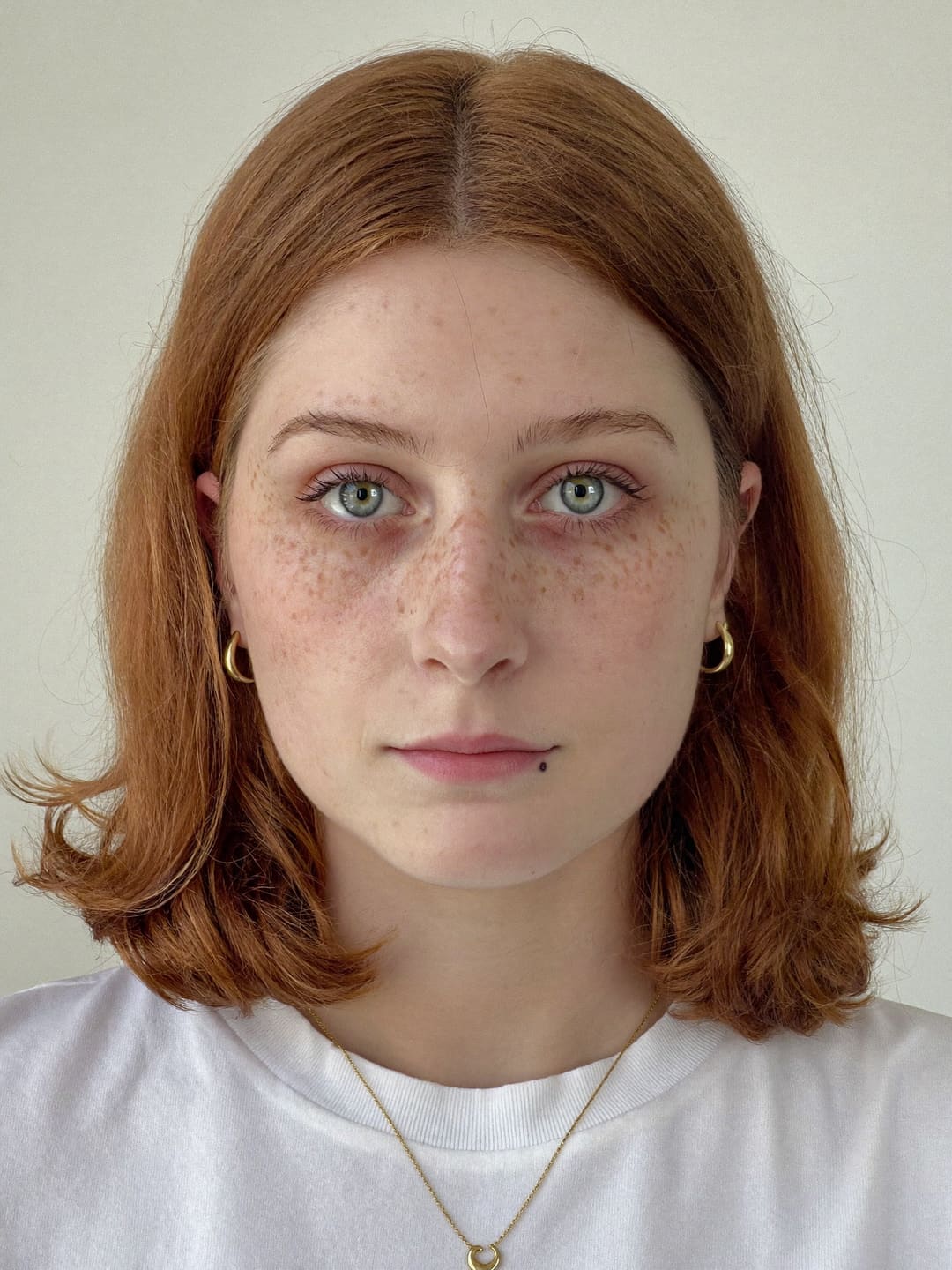
A character-consistency prompt, on Nano Banana 2, not Pro. On October 27, 2026 we made one fictional woman with Higgsfield's Soul 2.0, then gave that single reference photo to Nano Banana 2 and Seedream 5.0 Pro with eight scene prompts. Every scene prompt repeated her details in this exact clause, which is what our same-face test published:
Our tested clause (Oct 27, 2026, run on Nano Banana 2 and Seedream 5.0 Pro via Higgsfield)
Added to each of 8 scene prompts, with the reference photo attached
keep her face, grey-green eyes, freckles, copper hair with a middle part, the small mole below her lip, gold hoop earrings and the thin gold crescent-moon necklace exactly as in the reference
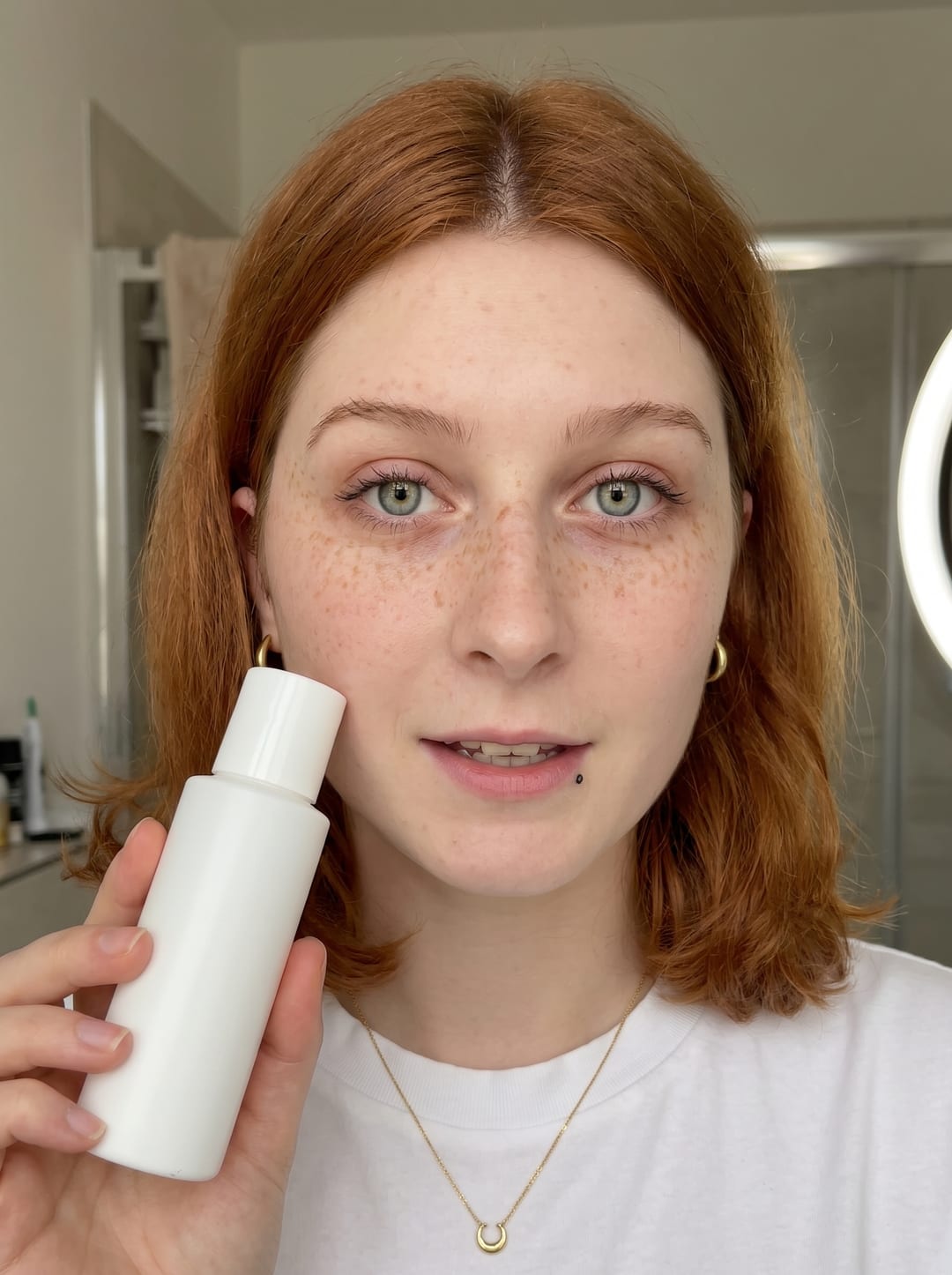
It is Google's own advice in practice: describe what must stay, in detail. The result on Nano Banana 2, at 2 credits a 2K image: 4 of 8 shots kept all five details we scored, and all 16 shots across both models read as the same woman. The misses were small: freckles faded in bright window light, side views added earrings nobody asked for, and Nano Banana 2 turned her the wrong way when we asked for her left profile. Seedream 5.0 Pro kept 6 of 8.
Our reference and one Nano Banana 2 result (Oct 27, 2026)
Swipe →
The reference, made with Soul 2.0 for 0.12 credits. Every scene was scored against this picture. · Generated with Higgsfield (Soul 2.0)
UGC product selfie on Nano Banana 2, 2 credits: 5 of 5 details kept, the closest match in the test. · Generated with Higgsfield (Nano Banana 2)
What we'd change, from our own misses: a reference that shows the angles you'll use (every jewellery miss came in a side view), and a name for the character, which Google recommends and we didn't use. We haven't rerun the clause on Nano Banana Pro, so we can't say whether Pro holds the details better. For a trained face instead of a reference photo, see Higgsfield Soul vs Nano Banana.
How do you use Nano Banana Pro in the Gemini app?
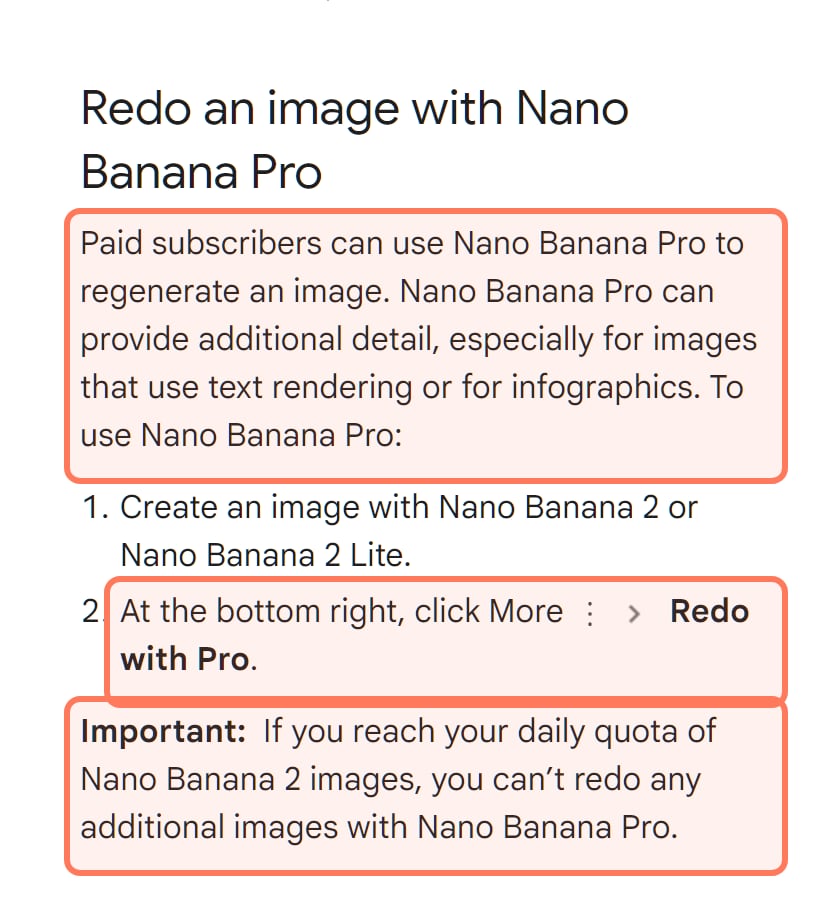
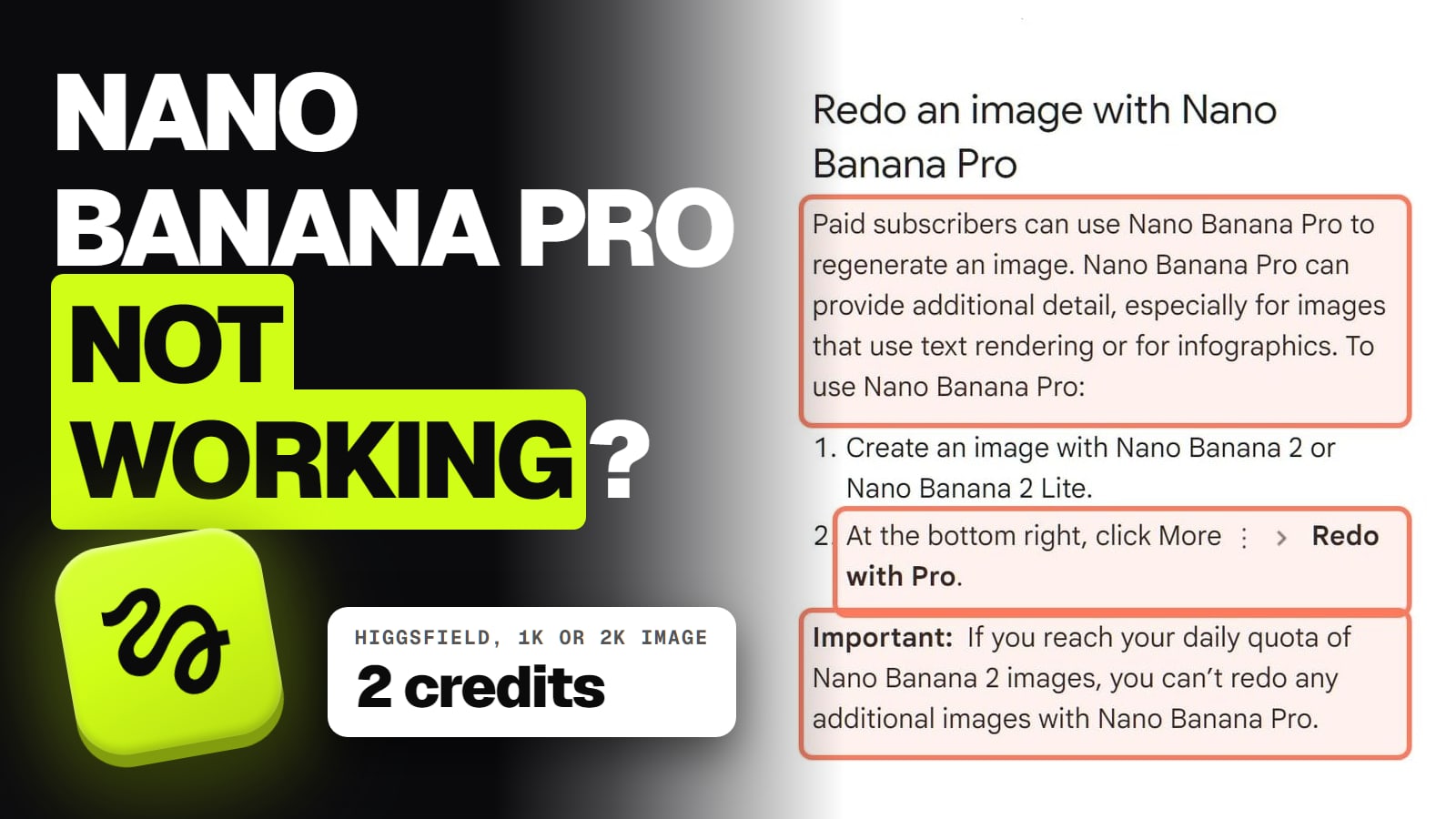
As a redo, on a paid plan. Google's Gemini help says Nano Banana Pro is "Available with a Google AI Plan" when the Gemini model is set to Pro, and that it regenerates an image the app first made with Nano Banana 2:
Google's Gemini Apps Help, Generate & edit images (support.google.com/gemini, read November 7, 2026). Outlines ours. · Screenshot of support.google.com by aliteq
Be on Google AI Plus, Pro or Ultra.
Set the Gemini model to Pro, then type your prompt. Google's help suggests starting with a verb such as draw, generate or create, naming the style and describing the subject, action and setting.
Under the image, click More, then Redo with Pro.
Google's help adds that image editing isn't available to users under 18, and that downloads are 2K with a Google AI plan. If Pro doesn't appear or stops, our Nano Banana Pro not working guide walks through each cause.
How do you use Nano Banana Pro in Google Flow?
Pick it in the prompt box. Google's Flow help, read November 8: open a project, click the model name in the prompt box, choose Image, set the aspect ratio, number of outputs and model, write the prompt, add any ingredients, and click Generate. Ingredients are your reference images: drag media into the prompt, or use More then Add to Prompt on an image; typing @ and a character name pulls in a saved character. Edits don't overwrite the original; earlier versions and their prompts stay in the History panel.
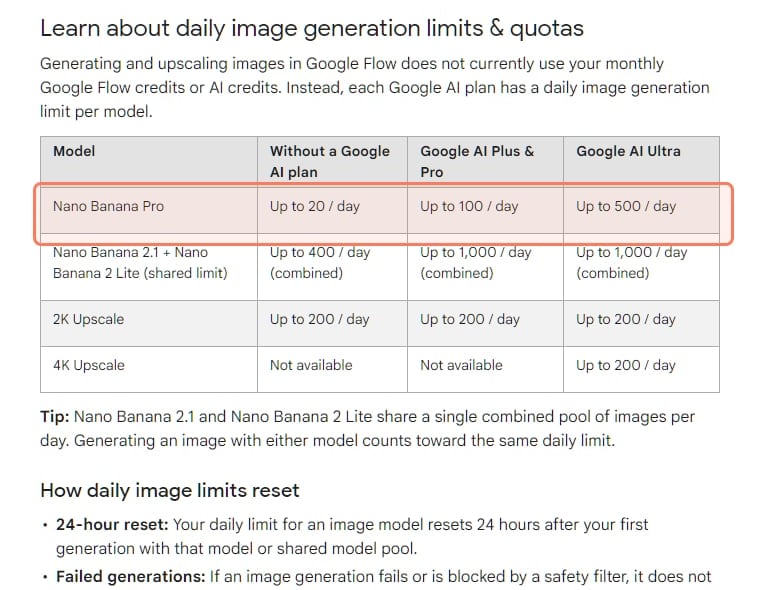
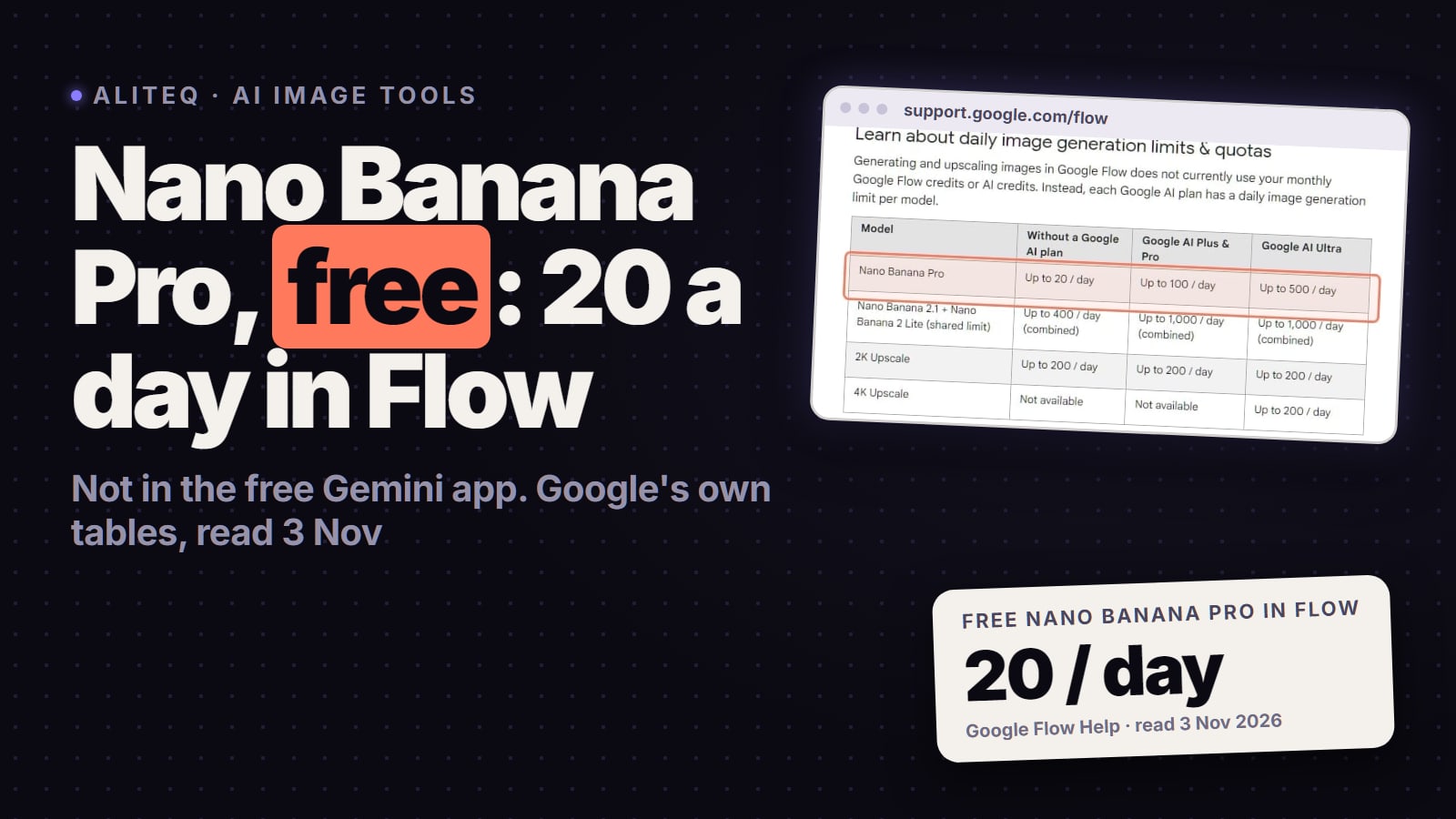
Flow is also the free route. Without a Google AI plan it allows up to 20 Nano Banana Pro images a day, without spending Flow credits:
Google Flow Help, Create & edit images in Google Flow, read November 3, 2026 (unchanged on November 8). The Nano Banana Pro row is outlined. · Screenshot of support.google.com by aliteq
One trap: Flow's pages disagree on the default model, and its Agent mode picks a model for you. Turn the Agent off and choose Nano Banana Pro yourself to be sure. Limits, watermarks and age rules are in is Nano Banana Pro free. Google's Cloud guide also suggests making keyframes with Nano Banana and animating between them with Veo; our image-to-video guide compares the video side, and the best AI video generator guide ranks Veo against the rest.
How do you use Nano Banana Pro on Higgsfield?
Higgsfield's help article (last modified September 9, 2026) gives the steps:
Open Image, then pick Nano Banana Pro.
Choose Text-to-Image, Multi-reference or Image-to-Image.
Write a specific prompt: subject, setting, lighting, and any quantities or text. Higgsfield's example asks for "exactly 3 bottles on the left side of the frame" rather than a few bottles.
Add up to 14 references and say in the prompt what each one is for.
Iterate at 1K, then render the final at 2K or 4K. Change the prompt or the references, not both at once.
Nano Banana Pro at 2K, one image: 2 credits on Higgsfield (signed out, nothing generated, November 7, 2026). Outline ours. · Screenshot of higgsfield.ai by aliteq
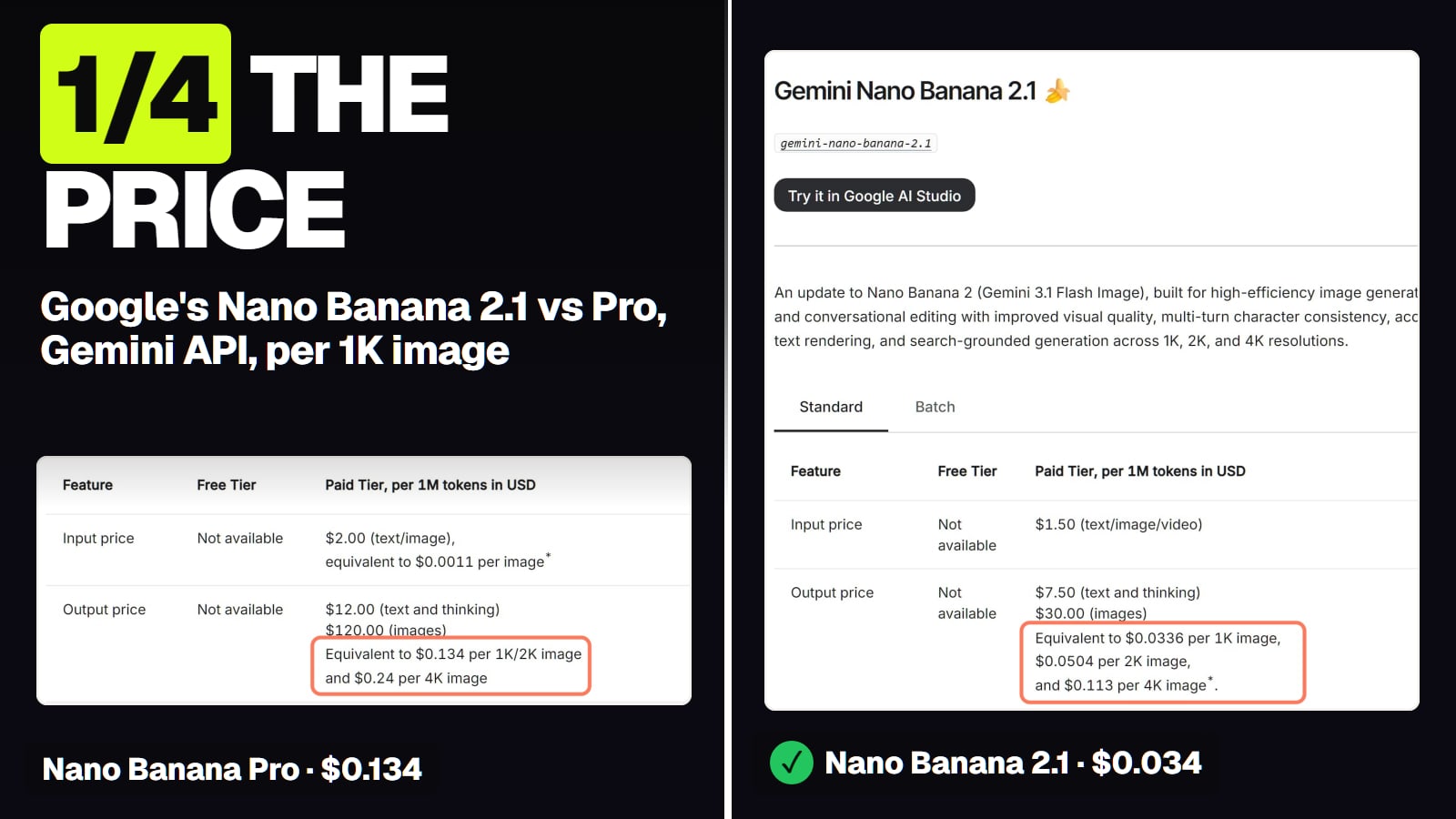
Higgsfield's pricing page listed Nano Banana Pro at 2 credits an image and 4 at 4K on November 3. At the monthly Plus rate ($59 for 1,200 credits) that's about $0.10 an image, our arithmetic. Google's own content rules still apply there: Higgsfield's help says the model provider runs its own safety check on top of Higgsfield's.
Is there a Nano Banana prompt generator?
Google's answer is Gemini itself. Its Cloud guide says "Gemini 3 can help you create prompts and with creative direction", and its text-first advice works the same way: ask Gemini for the wording, then for the image. Prompt-generator sites with "Nano Banana" in the name aren't Google, and we haven't tested any. If a model keeps failing your prompt, Nano Banana Pro alternatives lists what to try instead, priced per image.
What does Google say Nano Banana Pro still gets wrong?
Five things, from Google's own limitations note on the Pro tips post:
Small text, fine details and spelling "may not work perfectly".
Data in diagrams and infographics needs checking for facts.
Translated text "may make grammar mistakes or miss specific cultural nuances".
Blending and lighting edits can produce artifacts.
"character consistency across edits may vary". Our test saw the same on Nano Banana 2: the face held, small details drifted.
Google's API docs add that the model "won't always follow the exact number of image outputs" you ask for, and list the languages it works best in, from English to Hindi, Japanese and Vietnamese. Every image carries Google's invisible SynthID watermark.
What we couldn't verify
Our clause on Nano Banana Pro. We ran it on Nano Banana 2 and Seedream 5.0 Pro only.
Any prompt as "proven" on Pro. Every template above is Google's; we haven't run them.
The full scene prompts from our test. Our test page published the shared clause and the scene list, not each full prompt, so we quote only the clause.
The 14-reference limit in each app. Google says the limit varies by surface; Flow's help doesn't give a number.
Third-party prompt generators. We haven't tested any, and they aren't Google.
The Gemini app's daily image count. Google doesn't publish one for personal plans.
8/ 10
Verdict
Follow Google's formula, check the details
Write Nano Banana Pro prompts the way Google documents: a described scene (subject, action, location, framing, style), exact text in quotes with the font named, edits that say what must stay the same, and a role for every reference image. Use Google's templates as starting points, check small text and faces at full size, and iterate in conversation. Flow gives you 20 free Pro images a day to practise; the Gemini app needs a paid plan; Higgsfield charges 2 credits at 2K.
Best for: Anyone writing prompts for Nano Banana Pro in Gemini, Google Flow or Higgsfield
Frequently asked
What is the best prompt format for Nano Banana Pro?
Google's guides describe one: subject, action, location, composition and style, written as sentences, plus aspect ratio, camera and lighting details. Google's Cloud guide says a simple list of keywords won't cut it (read Nov 8, 2026).
How do you add text to a Nano Banana Pro image?
Put the exact words in quotes, describe the font and say where the text goes. Google also suggests agreeing the wording with Gemini first and then asking for the image. Check spelling at full size; Google says small text may not render perfectly.
How many reference images can Nano Banana Pro use?
Up to 14 in total, of which 5 are handled with high fidelity, per Google's API docs for gemini-3-pro-image (read Nov 8, 2026). Google's blog says the number varies by surface; Higgsfield lists up to 14.
How do I use Nano Banana Pro in Gemini?
On a Google AI plan, set the Gemini model to Pro, create the image, then click More and Redo with Pro under it. Google's help says Pro redos stop once your daily Nano Banana 2 quota is used up.
Is there a free way to practise Nano Banana Pro prompts?
Yes. Google Flow allows up to 20 Nano Banana Pro images a day without a Google AI plan, and image generation there doesn't use Flow credits (Google's Flow help, read Nov 8, 2026).
Do negative prompts work in Nano Banana Pro?
Google advises against them. Its docs say to describe the scene you want positively, such as an empty, deserted street, instead of writing "no cars".
The short version: Google's own guides are the best Nano Banana Pro prompt guide there is; describe the scene, quote the text, protect what must not change, give references a role, and check the result at full size.