Everyone asks about VRAM — but your system RAM matters too, especially without a big GPU. Here's how much RAM you actually need for local AI, from 16GB to 128GB, and what each tier runs.
Some links on this page are referral links: we may earn a commission, at no cost to you.
Share
How much RAM do you need for local AI?
Everyone obsesses over VRAM — but your system RAM matters too, and it's the number people forget. Here's the simple version: 16GB of RAM comfortably runs 8B models, 32GB is the sweet spot (13-14B and serious workflows), and 64GB or more handles 70B models with CPU offload. RAM matters most when you don't have a big graphics card — for CPU-only inference, for offloading part of a model when it doesn't fit in VRAM, and for the RAG pipelines, Docker stacks and tools around your model. If you have a big GPU, VRAM does the heavy lifting; if you don't, RAM is what decides what you can run. Here's the breakdown.
RAM vs VRAM — why both matter
This trips a lot of people up, so let's be clear. VRAM is the memory on your graphics card — it's fast and it's where a model runs when you have a GPU; that's why VRAM is king for GPU inference. System RAM is your computer's main memory, feeding the CPU. They're different pools. Where RAM becomes the deciding factor: (1) no GPU — the whole model runs in RAM on the CPU; (2) model bigger than your VRAM — tools like Ollamaoffload the overflow to system RAM, so more RAM lets you run larger models than your card alone could (slower, but it runs); and (3) everything around the model — a RAG vector database, a browser, your IDE, Docker all want RAM too. A neat data point: community benchmarks show that going from 16GB to 64GB can improve effective tokens/second by 30-60% for models that rely on CPU offload — because the system isn't thrashing. So if you have a strong GPU, prioritise VRAM; if you're on CPU or a modest card, RAM is what unlocks bigger models.
System RAM tiers for local AI
16GB
RAM
Up to ~8B models
Runs comfortably
Starter / casual local AI
32GB
RAM
13-14B + full workflows
Runs comfortably
The sweet spot for most
64GB
RAM
70B with CPU offload
Runs comfortably
Power users, RAG, Docker
128GB
RAM
Large models / big offload
Runs comfortably
Enthusiast headroom
RAM
Runs comfortably
Best for
16GB
Up to ~8B models
Starter / casual local AI
32GB
13-14B + full workflows
The sweet spot for most
64GB
70B with CPU offload
Power users, RAG, Docker
128GB
Large models / big offload
Enthusiast headroom
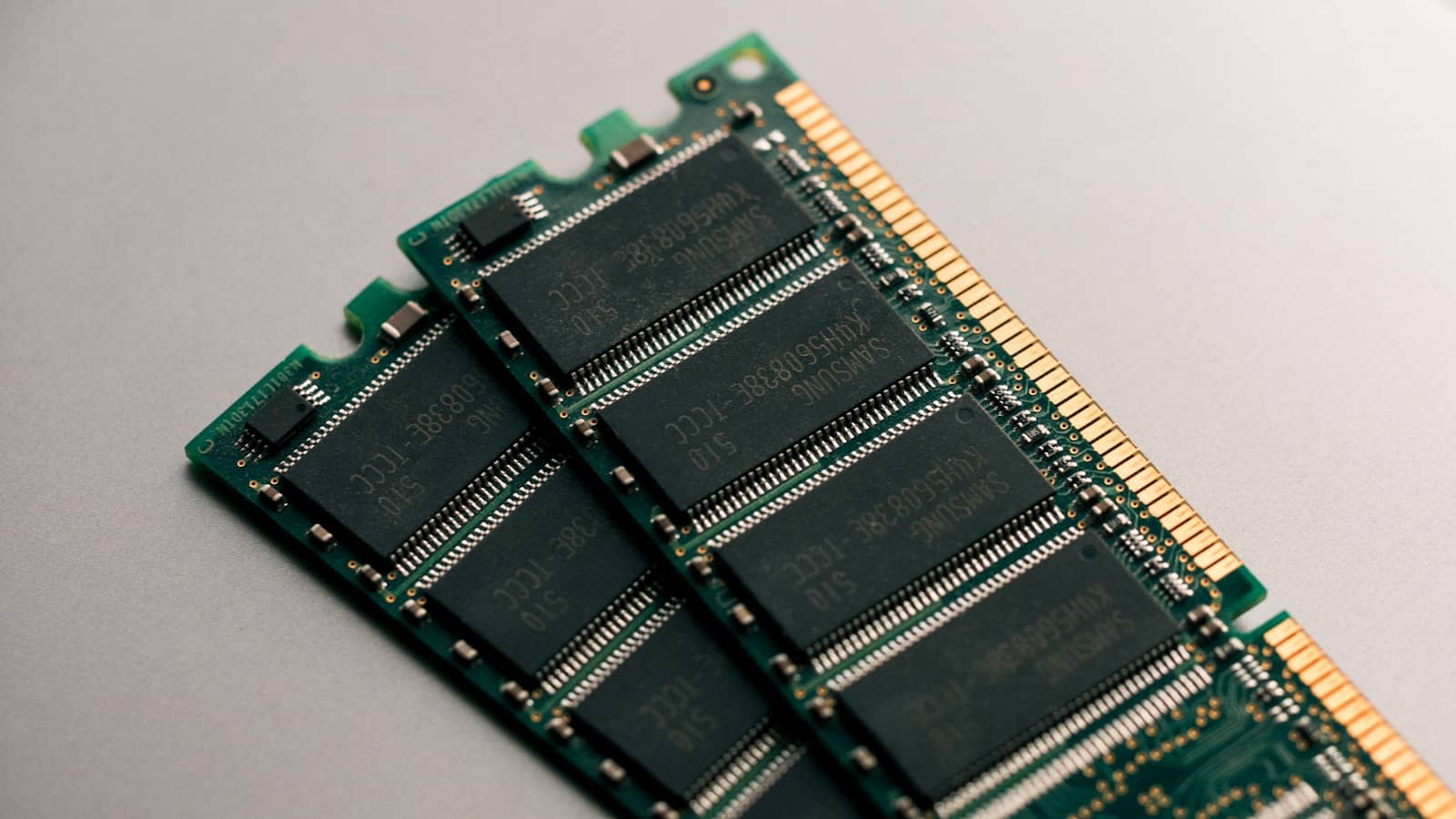
32GB is the practical sweet spot — enough for a 13-14B model plus the tools and pipelines around it. · Unsplash
So how much should you buy?
Here's my straight advice. For most people getting into local AI, 32GB is the target — it comfortably runs the 8-14B models that do 90% of real work, and leaves room for your OS, browser, and a RAG or Docker setup alongside. 16GB is a perfectly good starting point if you're running 8B models and not much else, and you can always add more later on a desktop. Go to 64GB if you specifically want to run 70B models with offload, juggle heavy multitasking, or want to future-proof — it's the enthusiast pick, and RAM is cheap enough that the jump is often worth it. 128GB only makes sense for serious large-model work or a unified-memory box where RAM is your GPU memory. And remember the golden rule: never size a model to your total RAM — a 14GB model on a 16GB machine will choke the OS and everything slows down. Leave a few GB of headroom, match the model to the tier, and check the exact fit in the calculator. Get RAM right and the rest of your local-AI setup just works.
If you plan to offload, buy for speed as well as size. Weights that live in VRAM never touch system RAM, but every offloaded layer or expert is read from it again for each token, so faster, wider memory (higher-clocked DDR5, both channels filled) makes an offloaded model run faster, not just fit. It's also why unified-memory machines do well here: their "system RAM" is fast enough to work as AI memory. The MoE offload guide shows how much of the speed comes down to your RAM.
As an Amazon Associate we earn from qualifying purchases.
For most people, 32GB of system RAM is the sweet spot — it comfortably runs 8-14B models plus the OS, browser, and tools like RAG or Docker alongside. 16GB is a fine starting point for 8B models and light use. 64GB or more is worth it if you want to run 70B-class models with CPU offload, do heavy multitasking, or future-proof. 8GB is tight, handling roughly 9B models with little headroom. The key rule: never size a model to your total RAM — leave a few gigabytes for the operating system or everything will slow down.
Is RAM or VRAM more important for local AI?
It depends on your setup. If you have a strong GPU, VRAM matters most — it's the fast memory on your graphics card where the model actually runs. If you don't have a big GPU, system RAM is the deciding factor: it runs the model on the CPU, and it holds the overflow when a model is larger than your VRAM (offloading). RAM also feeds everything around the model — vector databases, Docker, your IDE. So prioritise VRAM if you're buying a GPU, and prioritise RAM if you're running on CPU or a modest card. Both matter; which one leads depends on whether you have a capable GPU.
Does more RAM make local AI faster?
Sometimes, yes — specifically when a model relies on CPU offload because it doesn't fully fit in your VRAM. Community benchmarks show going from 16GB to 64GB can improve effective tokens per second by 30-60% in those cases, because the system stops thrashing between memory and disk. But if your model fits entirely in VRAM on a GPU, adding more system RAM won't speed up inference — the GPU is doing the work. More RAM mainly lets you run larger models and more tools at once rather than speeding up a model that already fits. Match RAM to the model size you want to run.